 |
JM9 XRCU Tutorials 0.0.1a
Learn how to program XRCU
|
|
JM9 XRCU Tutorials 0.0.1a
Learn how to program XRCU
|
Motors make your robot move. In this chapter, we will spin DC motors with XRCU. A DC motor has 2 wires. When electricity flows through it one way, the motor spins one way. When electricity flows the other way, the motor spins the other way.
A motor needs a lot of electricity, much more than an XRCU pin can give. If you connect a motor straight to an XRCU pin, the motor will not spin, and the pin may be damaged. So we use a helper board called a motor driver.
Our motor driver is the JM9-PC-71022. It is made by the same team that made XRCU.
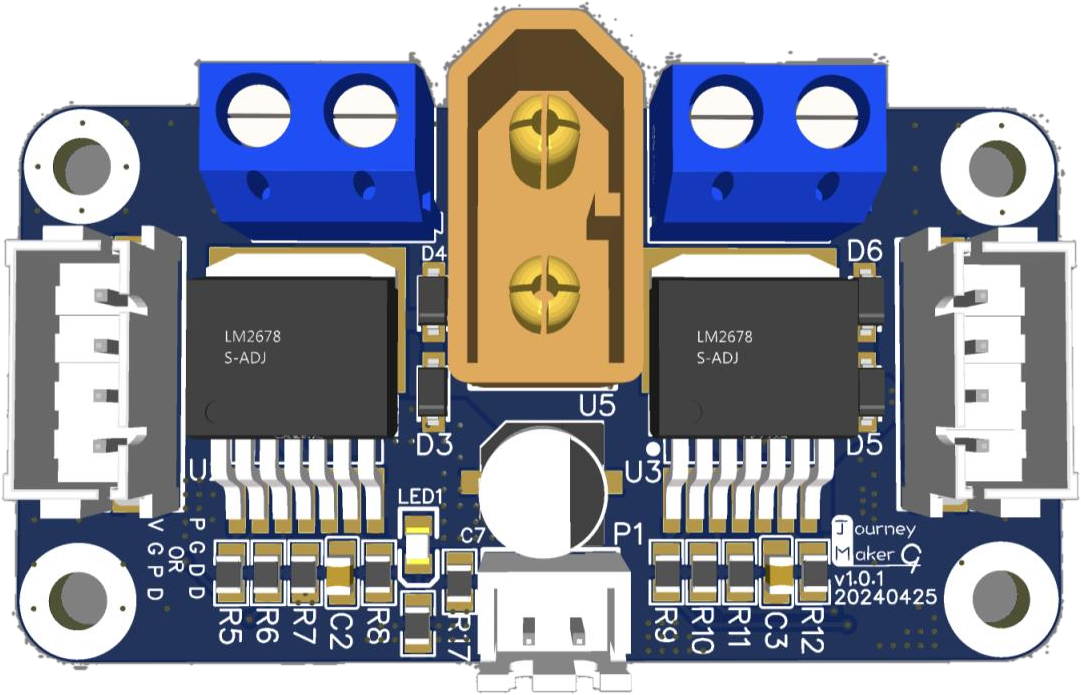
Think of the motor driver as a water tap. XRCU only turns the handle, which is easy. The driver then lets the big flow of electricity from the battery go into the motor. XRCU tells the driver how fast and which way to spin, and the driver gives the motor the power from the battery.
1 driver can control 2 motors at the same time. These are its parts:
| Part on the driver | What it does |
|---|---|
| M1-IN (white socket on the left) | Signals from XRCU for motor 1. |
| M2-IN (white socket on the right) | Signals from XRCU for motor 2. |
| M1-OUT (blue screw terminal, top left) | The 2 wires of motor 1. |
| M2-OUT (blue screw terminal, top right) | The 2 wires of motor 2. |
| XT60 socket (yellow, top middle) | Power from the battery. |
| GND SW (white socket, bottom middle) | The ON/OFF switch of the driver. |
The driver is ON when SW is connected to GND. It is OFF when they are not connected. The easiest way to turn the driver ON is a dupont jumper wire: plug one end into the GND pin and the other end into the SW pin of this small socket. To turn the driver OFF, pull the jumper wire out.
On XRCU, the motor ports are M1, M2, M3 and M4, at the top of the board. Each motor port has the same 4 pins as the other ports: 3V3, GND, an A pin and a B pin.
Each input socket of the driver also has 4 pins: INH, GND, INA and INB. We connect them with a 4-pin cable, which has a white plug at each end:
| XRCU pin | Driver pin | What it does |
|---|---|---|
| 3V3 | INH | Keeps the driver awake. |
| GND | GND | Ground. |
| A pin (e.g. M1A) | INA | How fast to spin. |
| B pin (e.g. M1B) | INB | Which way to spin. |
The cable does all of this for you. The plugs only fit one way round. You never need to control these pins yourself: the Motors library does it for you, as we will see soon.
In this chapter, we connect:
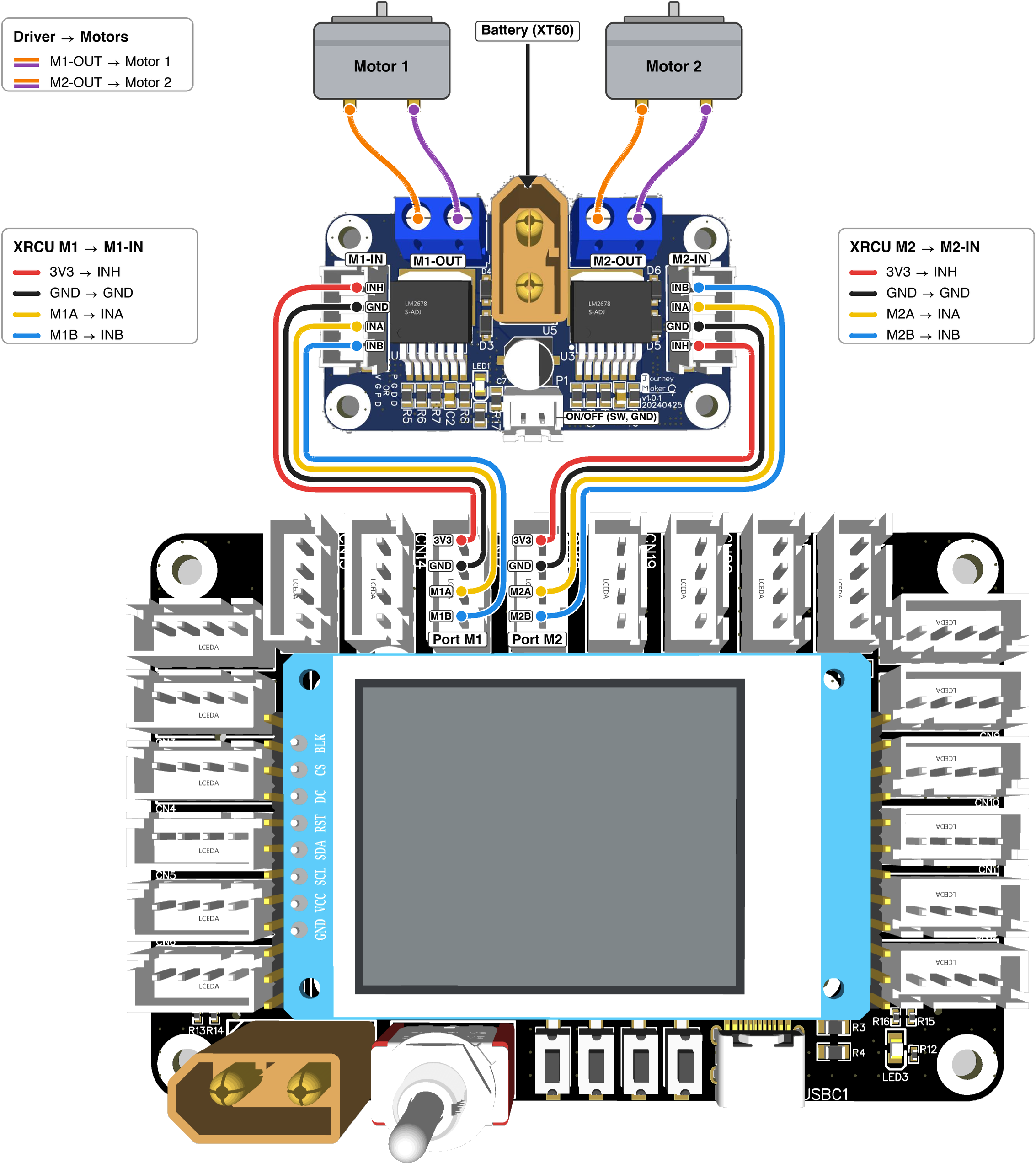
Look closely at the 2 input sockets of the driver. On M1-IN, the pins from top to bottom are INH GND INA INB. On M2-IN, they are the other way round: INB INA GND INH. The 2 sockets are mirror images, just like the ports on the left and right sides of XRCU. This is correct. The cable plugs in the right way round by itself.
To connect a motor wire to a blue screw terminal, turn the screw on top anticlockwise with a small screwdriver to open the hole. Push the bare end of the wire into the hole, then turn the screw clockwise until the wire is held tightly. Pull the wire gently to check that it does not come out.
First, include the Motors library at the top of your program:
Just like button1 to button4 in the Buttons chapter, the Motors library gives us 4 ready-made motors. You do not need to create them yourself:
| Name in code | Motor port on XRCU |
|---|---|
| mtr1 | M1 |
| mtr2 | M2 |
| mtr3 | M3 |
| mtr4 | M4 |
(mtr is short for motor.)
Unlike the buttons, motors do not start by themselves. We must start each motor that we use with begin() inside setup().
Then we give the motor a speed with set_spd(...). (spd is short for speed.) The speed is a whole number from -255 to 255:
| Speed | What the motor does |
|---|---|
| 1 to 255 | Spins forwards. 255 is full speed. |
| 0 | Stops. |
| -1 to -255 | Spins backwards. -255 is full speed. |
So the size of the number tells the motor how fast to spin, and the sign (+ or -) tells it which way to spin.
The motor keeps the speed you gave it, until you give it a new speed. That is why we can use delay(...) to let it spin for a while.
Turn OFF XRCU and the driver. Connect the driver and 2 motors as shown above. Tape the motors down onto the table, so they cannot roll away. Stick a small piece of tape onto each motor shaft like a flag, so you can see which way it spins. Plug in the battery, turn ON XRCU and the driver, then upload the code above and run it.
Look at motor 1 from the shaft end. Which way does it spin for speed 150: clockwise or anticlockwise? And for speed -150?
Next, turn everything OFF, and swap the 2 wires of motor 1 in M1-OUT. Turn everything ON again. Which way does the motor spin for speed 150 now? Why?
Record a video showing the motor, before and after you swap its wires. Submit this video to your assignment portal at checkpoint 12.1.
Now let's change the speed slowly, step by step. This program makes the speed go up by 5 every 0.1 seconds, all the way to full speed forwards (255). Then it goes down by 5 every 0.1 seconds, all the way to full speed backwards (-255), and then up again, again and again.
Upload the code above and run it. Open the serial monitor with timestamps.
Watch the motor and the serial monitor carefully.
Small speeds may not be strong enough to make the motor turn at all. Why do you think this happens?
Record a video showing the motor and the serial monitor for one full round, from 0 up to 255, down to -255, and back to 0. Submit this video to your assignment portal at checkpoint 12.2.
What happens if we give a speed that is too big, like 1000? The motor cannot spin faster than full speed. So set_spd(...) changes any speed above 255 to 255, and any speed below -255 to -255.
set_spd(...) also gives back the speed that the motor really got. And get_spd() gives the speed that the motor has now.
Write a program that controls motor 1 with the buttons:
(Hint: use button1.isClicked() from the Buttons chapter. The new speed is mtr1.get_spd() + 50.)
Upload and run it.
Record a video showing your fingers, the motor and the serial monitor during the test above. Submit this video to your assignment portal at checkpoint 12.3.
When you give a motor speed 0, the driver brakes the motor. It joins the 2 motor wires together inside the driver. This makes a spinning motor stop quickly, instead of rolling on for a while.
Before your program calls begin(), XRCU keeps the motor pins LOW, so the motors also stay braked. This way, your robot does not move by itself before your program is ready.
A robot usually has 2 wheels, one on the left and one on the right, each with its own motor. Our driver controls both: motor 1 on M1-OUT, and motor 2 on M2-OUT.
To use 2 motors, we start both of them in setup(), then give each motor its own speed:
mtr1.set_spd(...) and mtr2.set_spd(...) run one right after the other, in less than a thousandth of a second. So the 2 motors change speed together.
With 2 wheels, a robot can move in different ways:
| Left motor | Right motor | The robot... |
|---|---|---|
| forwards | forwards | drives straight forwards. |
| backwards | backwards | drives straight backwards. |
| forwards | backwards | turns right on the spot. |
| backwards | forwards | turns left on the spot. |
| fast forwards | slow forwards | drives forwards in a curve to the right. |
Put your 2 motors side by side, with their shafts pointing the same way, and keep the tape flags on the shafts. (If you have a robot, lift it up so that its wheels are in the air.)
Write a program that repeats these steps again and again:
Upload and run it. In step 1, do both flags spin the same way? If motor 1 is the left wheel of a robot and motor 2 is the right wheel, which way would the robot turn in step 3? And in step 5?
Record a video showing both motors during all 6 steps. Submit this video to your assignment portal at checkpoint 12.4.
On a real robot, the left motor and the right motor face opposite ways, like mirror images. So when both motors spin "forwards", one wheel rolls forwards and the other wheel rolls backwards. The robot just turns on the spot!
One fix is to swap the 2 wires of one motor, like you did in checkpoint 12.1. Another fix is to tell XRCU to reverse that motor. After that, positive speeds make it spin backwards, and negative speeds make it spin forwards.
| Code | What it does |
|---|---|
| mtr2.set_reverse_flag(true) | Reverse motor 2, and save this setting inside XRCU. |
| mtr2.set_reverse_flag(false) | Make motor 2 normal again, and save this setting inside XRCU. |
| mtr2.get_reverse_flag() | true if motor 2 is reversed, false if not. |
(A flag is a true/false setting, like a flag that is up or down.)
The setting is saved inside XRCU, just like the gyro calibration. mtr2.begin() loads it automatically every time your program starts, even after you turn XRCU OFF. So you only need to set it once for each robot.
This program flips the setting of motor 2 each time you click SW1:
!reversed means "not reversed": true becomes false, and false becomes true.
Put your 2 motors facing each other, shaft to shaft, like the 2 wheels of a robot. (If you have a robot, lift it up so that its wheels are in the air.)
Upload the code above and run it. Open the serial monitor.
Record a video showing both motors and the serial monitor during steps 1 and 2. Submit this video to your assignment portal at checkpoint 12.5.
| Code | What it does |
|---|---|
| #include <Motors.h> | Lets us use mtr1 to mtr4. |
| mtr1.begin() | Starts the motor on port M1, with its saved reverse setting. Call it in setup(). |
| mtr1.set_spd(150) | Spins forwards at speed 150. Gives back the speed the motor really got. |
| mtr1.set_spd(-150) | Spins backwards at speed 150. |
| mtr1.set_spd(0) | Brakes the motor. |
| mtr1.get_spd() | The speed the program gave to the motor, from -255 to 255. |
| mtr1.set_reverse_flag(true) | Reverses the motor, and saves this setting inside XRCU. Only call it when a button is clicked! |
| mtr1.get_reverse_flag() | true if the motor is reversed, false if not. |
Remember:
 1.18.0