 |
JM9 XRCU Tutorials 0.0.1a
Learn how to program XRCU
|
|
JM9 XRCU Tutorials 0.0.1a
Learn how to program XRCU
|
XRCU has a small colour screen on the front. We call it the monitor. Your robot can use it to show words, numbers and pictures. For example, it can show the distance from an ultrasonic sensor, or a menu to choose a program, without a computer!
The monitor is a 1.8 inch screen with a chip called ST7735. You plugged it onto XRCU in the Hardware Setup chapter, so no extra wiring is needed.
In this chapter, we will learn how to print text and draw shapes on the monitor.
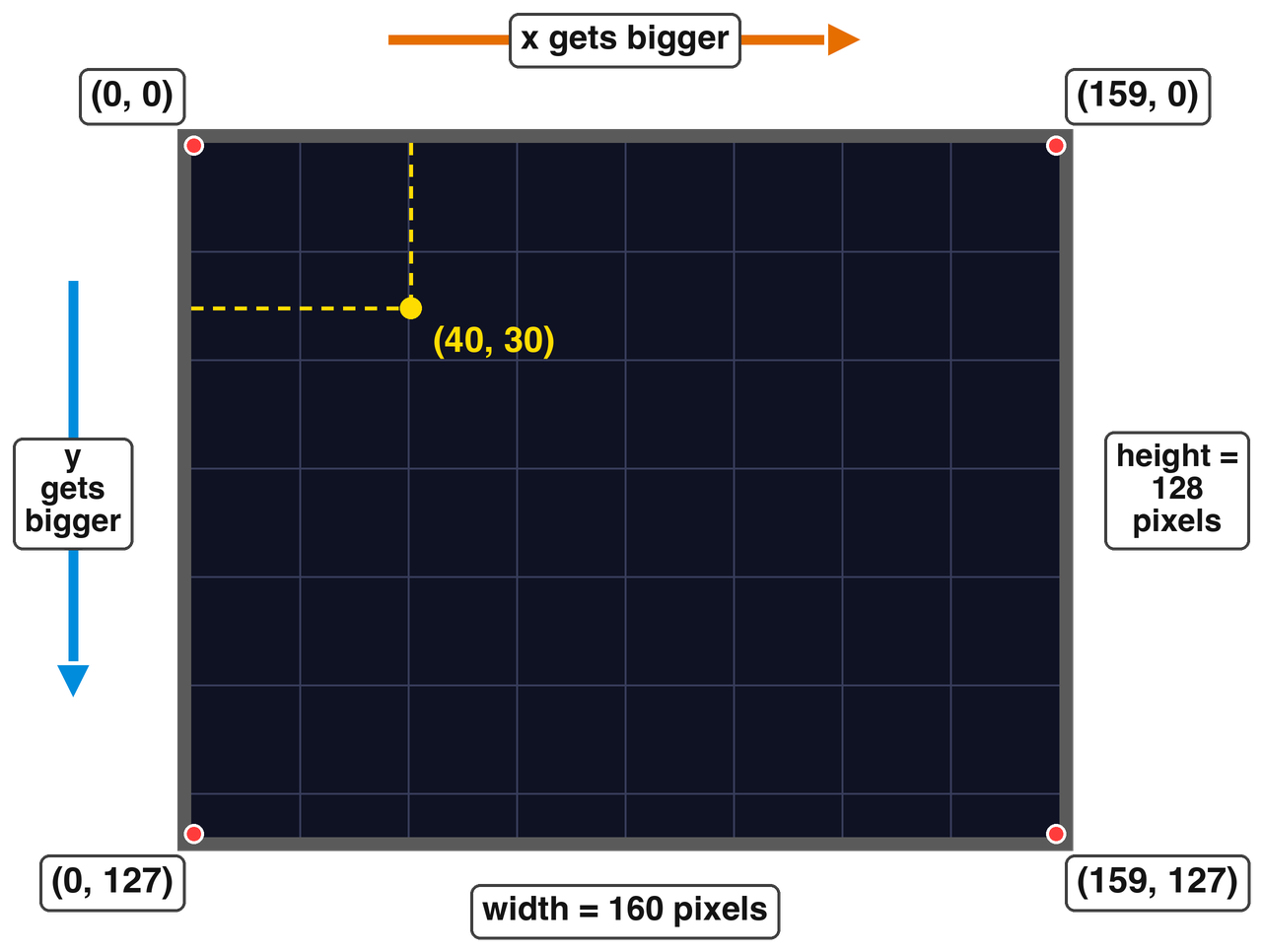
A screen is made of many tiny dots of light, called pixels. Each pixel can show one colour at a time. Our monitor is 160 pixels wide and 128 pixels tall.
To tell XRCU which pixel we mean, we use 2 numbers, called coordinates:
We write them together as (x, y). The top-left pixel is (0, 0). We start counting from 0, so the last pixel on the right has x = 159, not 160. In the same way, the last pixel at the bottom has y = 127.
To use the monitor, write this line at the very top of your program:
After that, we can use a ready-made object called display. display is our monitor. Just like button1, XRCU gets it ready for you before setup() runs, so you do not need to call begin().
Here is our first program:
Let's look at each line:
| Code | What it does |
|---|---|
| display.fillScreen(ST7735_BLACK) | Paints every pixel black. |
| display.setCursor(10, 20) | The next text starts here. (10, 20) is the top-left corner of the first letter. |
| display.setTextSize(2) | Makes the text 2 times bigger. Size 1 is the smallest. |
| display.setTextColor(ST7735_YELLOW) | Chooses the colour of the text. |
| display.print("Hello!") | Prints the text, starting at the cursor. |
At text size 1, every letter takes a box of 6 pixels wide and 8 pixels tall (including a small gap on the right, so the letters do not touch). At size 2, every letter is 2 times bigger: 12 pixels wide and 16 pixels tall. At size 3, it is 18 pixels wide and 24 pixels tall, and so on.
So at size 1, one line can fit 160 / 6 = 26 letters. At size 2, one line can only fit 13 letters.
If the text is too long for one line, the rest of the text goes on to the next line.
Just like Serial, the monitor has both print(...) and println(...). They can also print numbers, like display.print(25);. After println(...), the next text starts on a new line.
Change the program above, so that the monitor shows:
Upload and run it. Where does each word from println(...) start? Is it at x = 10 or at x = 0? Why?
Take a photo of the monitor. Submit this photo to your assignment portal at checkpoint 11.1.
Here are the colours that are ready for you to use:
| Code | Colour |
|---|---|
| ST7735_BLACK | black |
| ST7735_WHITE | white |
| ST7735_RED | red |
| ST7735_GREEN | green |
| ST7735_BLUE | blue |
| ST7735_CYAN | cyan (light blue) |
| ST7735_MAGENTA | magenta (pink-purple) |
| ST7735_YELLOW | yellow |
| ST7735_ORANGE | orange |
A robot often needs to show a number that keeps changing, like a distance or a counter. Let's try:
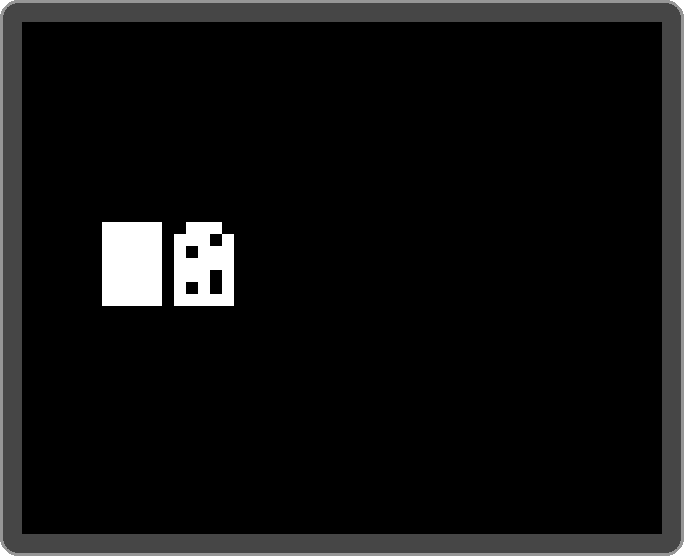
You may expect to see 0, then 1, then 2... But after a few seconds, the number turns into a white block!
This is because print(...) only paints the pixels of the letters. It does not clean the pixels around them. So the old number stays on the screen, and the new number is painted on top of it, like writing on the same spot of paper again and again. This is what the monitor shows after the numbers 0 to 12 are printed at the same place:
Before printing a new number, we paint a black rectangle over the old number. fillRect(...) paints a filled rectangle:
(20, 50) is the top-left corner of the rectangle. It is 120 pixels wide and 24 pixels tall: 24 is the height of a size 3 letter, and 120 is wide enough for a few digits.
So the new loop() becomes:
Upload the counter program without the fix, and run it. What happens to the number after 10 seconds?
Then add the black fillRect(...) before print(...), and upload again. Now change delay(1000); to delay(100);. Can you still read the number clearly? Does it flicker?
Record a video of the monitor in both tests. Submit this video to your assignment portal at checkpoint 11.2.
There is a second way to fix the problem. setTextColor(...) can take 2 colours:
Now print(...) paints the whole box of each letter: white for the letter, and black for the empty pixels around it. So each new letter covers up the old letter in the same place.
With only 1 colour, like setTextColor(ST7735_WHITE), the empty pixels are not painted. That is why the numbers in checkpoint 11.2 piled up.
But there is still a small problem. Imagine the screen shows 12, and then we print 0 at the same place. 0 only covers the box of the 1. The 2 is still there! So the screen shows 02.
To fix this, print a few spaces after the number. A space is a blank letter, so it paints its whole box with the background colour:
Make a click counter on the monitor:
(Hint: #include <Buttons.h> and button1.isClicked() from the Buttons chapter.)
Upload and run it. First, try it without printing spaces after the number. Click SW1 12 times, then click SW2. What does the screen show? Why? Then add the spaces, and try again.
Record a video showing your fingers and the monitor during both tests. Submit this video to your assignment portal at checkpoint 11.3.
Now let's draw some pictures! There are 2 kinds of shapes:
| Code | What it paints |
|---|---|
| display.drawPixel(x, y, colour) | One pixel at (x, y). |
| display.drawLine(x1, y1, x2, y2, colour) | A straight line from (x1, y1) to (x2, y2). |
| display.drawRect(x, y, width, height, colour) | The outline of a rectangle. (x, y) is its top-left corner. |
| display.fillRect(x, y, width, height, colour) | A filled rectangle. |
| display.drawCircle(x, y, radius, colour) | The outline of a circle. (x, y) is its centre. |
| display.fillCircle(x, y, radius, colour) | A filled circle. |
| display.drawTriangle(x1, y1, x2, y2, x3, y3, colour) | The outline of a triangle with corners (x1, y1), (x2, y2) and (x3, y3). |
| display.fillTriangle(x1, y1, x2, y2, x3, y3, colour) | A filled triangle. |
| display.fillScreen(colour) | Paints the whole screen. |
Be careful with the 2 different "corners": a rectangle starts from its top-left corner, but a circle starts from its centre.
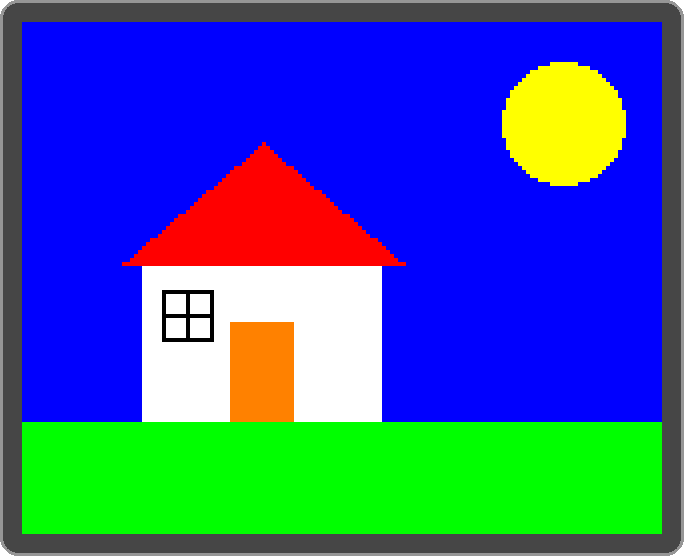
Here is a program that draws a small house with the sun in the sky:
Notice the order: later shapes are painted on top of earlier shapes. The walls are painted first, then the door is painted on top of the walls. Here is what the program draws:
If part of a shape is outside the screen, that part is simply not painted. Nothing breaks.
Draw a robot face on the monitor. Your picture must have:
Upload and run it. Then swap the order of 2 lines in your code, for example draw the eyes before the head. What happens? Why?
Take a photo of your robot face, and another photo of the picture after you swapped the 2 lines. Submit both photos to your assignment portal at checkpoint 11.4.
Numbers are easy to read, but sometimes a picture is even faster to read. Think of the battery bar on a phone: one look, and you know how much battery is left.
Let's draw a bar that shows a number from 0 to 100. First, we draw a white frame once, in setup():
The inside of the frame starts at (10, 60). It is 140 pixels wide and 20 pixels tall. When the number is 100, the bar should fill all 140 pixels. When the number is 50, the bar should fill half of it: 70 pixels. So the width of the bar is:
Then we paint 2 rectangles inside the frame: the bar itself in green, and the empty part on the right in black. The black part cleans up the old, longer bar when the number goes down.
Painting only these 2 rectangles is much faster than painting the whole screen, so the bar does not flicker.
Remember the "volume control" from the Buttons chapter (checkpoint 6.4)? Let's show it on the monitor!
Write a program where:
(Hint: a colour is just a number, so you can keep it in an int variable, like int barColour = ST7735_GREEN;, and change it with an if.)
Upload and run it. Hold SW2 until the volume reaches 100, then hold SW1 until the volume reaches 0. Does the bar change colour at the right place? Does the bar flicker?
Record a video showing your fingers and the monitor during the test above. Submit this video to your assignment portal at checkpoint 11.5.
| Code | What it does |
|---|---|
| #include <Monitor.h> | Lets us use the monitor, called display. It is ready before setup(). |
| display.fillScreen(ST7735_BLACK) | Paints the whole screen. Use it in setup() to clear the start-up message. |
| display.setCursor(x, y) | The next text starts here (top-left corner of the first letter). |
| display.setTextSize(2) | Text size. Size 1 letters are 6 x 8 pixels, size 2 letters are 12 x 16 pixels. |
| display.setTextColor(ST7735_WHITE) | Text colour. Only the letters are painted. |
| display.setTextColor(ST7735_WHITE, ST7735_BLACK) | Text colour and background colour. The whole box of each letter is painted. |
| display.print(...) / display.println(...) | Prints text or a number. A new line starts at x = 0. |
| display.drawPixel(x, y, colour) | Paints one pixel. |
| display.drawLine(x1, y1, x2, y2, colour) | Draws a line. |
| display.drawRect(x, y, w, h, colour) / fillRect(...) | Draws / fills a rectangle. (x, y) is the top-left corner. |
| display.drawCircle(x, y, r, colour) / fillCircle(...) | Draws / fills a circle. (x, y) is the centre. |
| display.drawTriangle(x1, y1, x2, y2, x3, y3, colour) / fillTriangle(...) | Draws / fills a triangle with 3 corners. |
| display.color565(red, green, blue) | Makes your own colour. Each number is from 0 to 255. |
Remember:
 1.18.0