 |
JM9 XRCU Tutorials 0.0.1a
Learn how to program XRCU
|
|
JM9 XRCU Tutorials 0.0.1a
Learn how to program XRCU
|
An ultrasonic sensor measures how far away an object is. It sends out a short sound that is too high for humans to hear, then listens for the echo. The longer the echo takes to come back, the further away the object is. Bats use the same trick to fly in the dark!
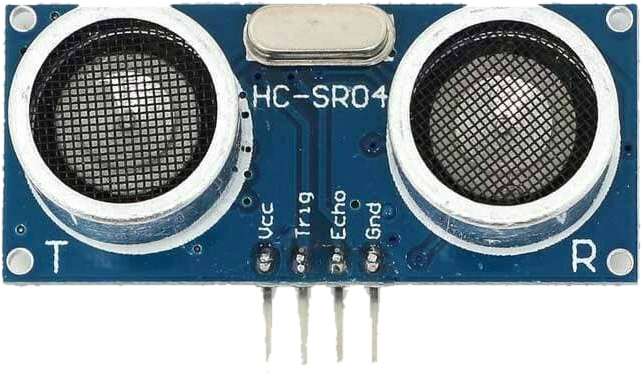
In this chapter, we will use the HC-SR04 ultrasonic sensor with XRCU.
In your previous classes, you may have measured distance like this:
It works, but you have to remember many steps. It also has some hidden problems:
XRCU has a library that solves all of these problems for you: Uts_gpio. (Uts is short for ultrasonic.)
The HC-SR04 has 4 pins: VCC, Trig, Echo and Gnd. A port on XRCU also has 4 pins: 3V3, GND, an A pin and a B pin. So 1 sensor uses exactly 1 port.
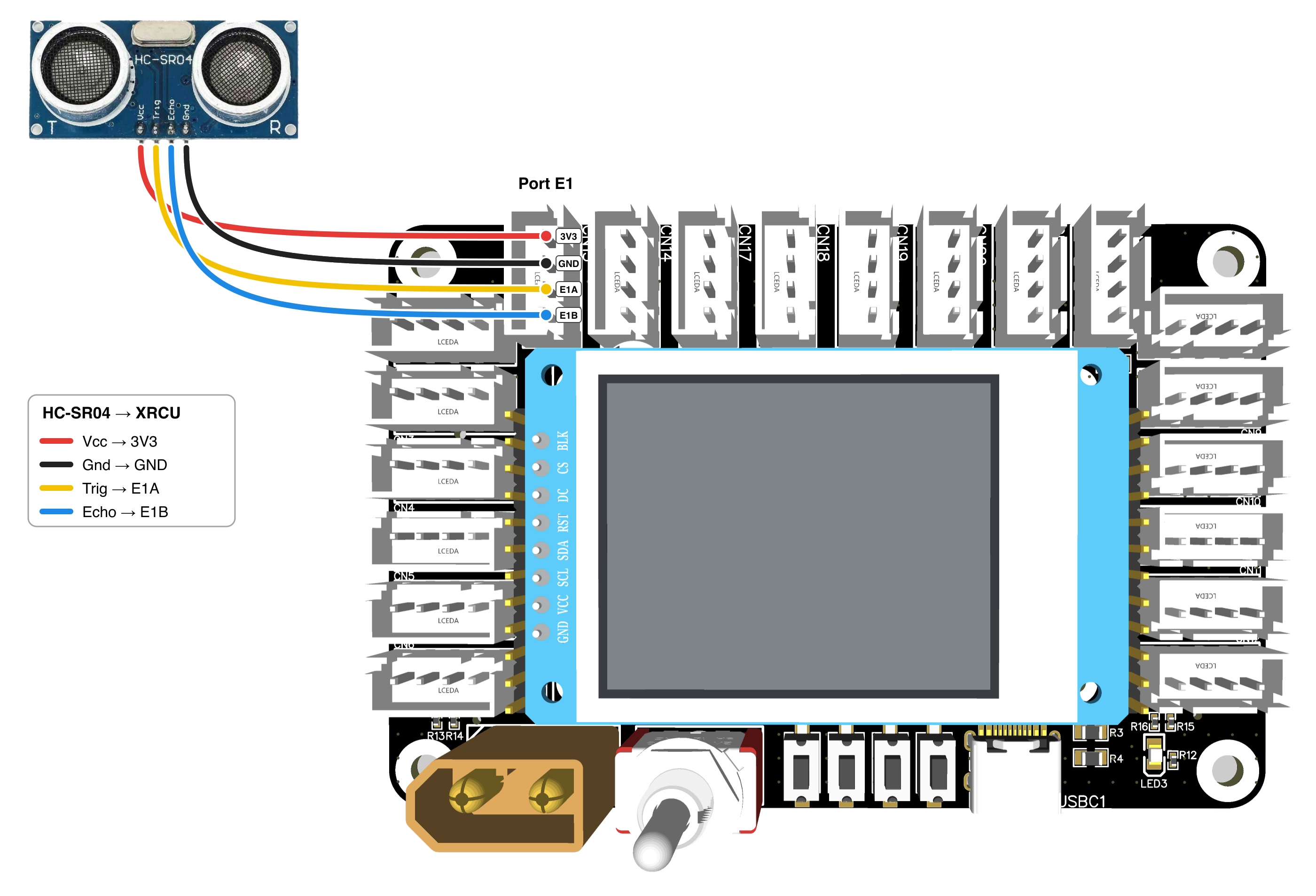
On XRCU, ultrasonic sensors should be connected to the E ports: E1, E2, E3 and E4, at the top of the board. We will see why soon.
Use 4 jumper wires to connect the sensor to port E1:
| HC-SR04 pin | Connect to XRCU |
|---|---|
| VCC | 3V3 |
| Gnd | GND |
| Trig | E1A |
| Echo | E1B |
First, include the Uts_gpio library at the top of your program:
Next, we create an ultrasonic sensor in our code, and tell it which port it uses:
This line means: "make a new Uts_gpio sensor called uts, on port E1". Write it above setup(), so that both setup() and loop() can use it. You can choose another name instead of uts, like frontSensor.
Then, we start the sensor with begin() inside setup(), and read the distance in centimeters with read_dist_cm():
That's it! No pulseIn(...), no maths, and no waiting between measurements. The library does all of that for you.
Turn OFF XRCU. Connect your HC-SR04 to port E1 as shown above. Turn ON XRCU, then upload the code above and run it. Open the serial monitor.
Point the sensor at a wall or a big book. Use a ruler to place the sensor 10 cm, 30 cm and 50 cm away from it. Does the serial monitor show the correct distance each time?
Record a video showing the ruler, the sensor and the serial monitor. Submit this video to your assignment portal at checkpoint 8.1.
Sometimes the sensor does not hear any echo. For example:
When this happens, read_dist_cm() gives 888. 888 is a special number that means "I could not measure the distance". It does not mean the object is 888 cm away!
You can also read the distance in millimeters with read_dist_mm(). 1 cm = 10 mm, so in millimeters the special number is 8888.
Change your program, so that it prints:
Upload and run it. Then try to make the sensor show No echo!: point it at the ceiling far away, at a pillow, or at a book tilted at an angle. Which ones give No echo!?
Record a video showing your tests and the serial monitor. Submit this video to your assignment portal at checkpoint 8.2.
Uts_gpio works on any port, not just the E ports. For example, Uts_gpio uts(U3); uses port U3, with Trig on U3A and Echo on U3B.
But the E ports are special. On an E port, XRCU measures the distance by itself, in the background, about 20 times every second. When you call read_dist_cm(), you get the newest distance immediately. You have seen this idea before: the Buttons library and the Ain library also do their work in the background.
On other ports, every read_dist_cm() makes your program wait for a new measurement, which takes about 0.05 seconds or more. Your program cannot do anything else during that time. For a fast robot, that is a long time!
You do not need to do anything special to get the faster way. Uts_gpio checks which port you gave it. If it is an E port, Uts_gpio quietly hands the work to another library called Uts_tic, which measures in the background. Your code stays exactly the same. Just change the port!
Let's measure how much faster the E ports are. Upload this program with the sensor on port E1:
Open the serial monitor with timestamps. How many seconds are there between 2 messages?
Then turn OFF XRCU, move the sensor to port U3, change E1 to U3 in the code, and try again. How many seconds are there between 2 messages now?
Take a screenshot of the serial monitor with timestamps for each port. Submit both screenshots to your assignment portal at checkpoint 8.3.
A robot often needs more than 1 sensor, for example one at the front and one at the side. To use more sensors, we create one Uts_gpio for each sensor. Give each sensor its own name and its own port:
When you use more than 1 sensor, they take turns: only 1 sensor sends out a sound at a time. This way, they never hear each other's echoes. The more sensors you use, the longer each sensor waits for its turn. With 2 sensors, each sensor measures about 10 times every second.
Turn OFF XRCU. Connect a second HC-SR04 to port E2. Write a program with 2 Uts_gpio sensors on E1 and E2, so that:
Upload and run it. Point the 2 sensors in different directions, then move your hand towards each sensor one by one.
Record a video showing the sensors, the LED and the serial monitor. Submit this video to your assignment portal at checkpoint 8.4.
Sometimes we want a sensor to stay quiet for a while. For example, in some competitions, 2 robots work on the same field. The sound from your robot may confuse your teammate's robot.
We can pause a sensor with disable(), and start it again with enable():
While a sensor is disabled, its read_dist_cm() gives 888, because it is not measuring anything.
Keep both sensors on E1 and E2. Change your program from checkpoint 8.4, so that:
(Hint: use button1.isClicked() and button2.isClicked() from the Buttons chapter.)
Upload and run it. Click SW1, then move your hand in front of the sensor on E2. What does the serial monitor show? Then click SW2 and try again.
Record a video showing the buttons, the sensors and the serial monitor. Submit this video to your assignment portal at checkpoint 8.5.
| Code | What it does |
|---|---|
| #include <Uts_gpio.h> | Lets us use Uts_gpio. |
| Uts_gpio uts(E1); | Makes a sensor called uts on port E1. Write it above setup(). |
| uts.begin() | Starts the sensor. Call it in setup(). |
| uts.read_dist_cm() | The distance in centimeters, or 888 if there is no echo. |
| uts.read_dist_mm() | The distance in millimeters, or 8888 if there is no echo. |
| uts.disable() | Pauses the sensor. |
| uts.enable() | Starts the paused sensor again. |
Remember:
 1.18.0