 |
JM9 XRCU Tutorials 0.0.1a
Learn how to program XRCU
|
|
JM9 XRCU Tutorials 0.0.1a
Learn how to program XRCU
|
In the Digital I/O chapter, a pin could only be HIGH or LOW. But many things in the real world are not just ON or OFF. A floor can be white, light gray, dark gray or black. To measure "how much", we need analog inputs.
An analog input gives a number instead of just HIGH or LOW. The part inside XRCU that turns a voltage into a number is called the ADC (Analog to Digital Converter).
In this chapter, we will use a grayscale sensor with the analog inputs of XRCU.
XRCU has 16 analog pins, called AA1 to AA16. They are on the 2 long rows of pins beside the monitor: AA1 to AA8 on the left, and AA9 to AA16 on the right.
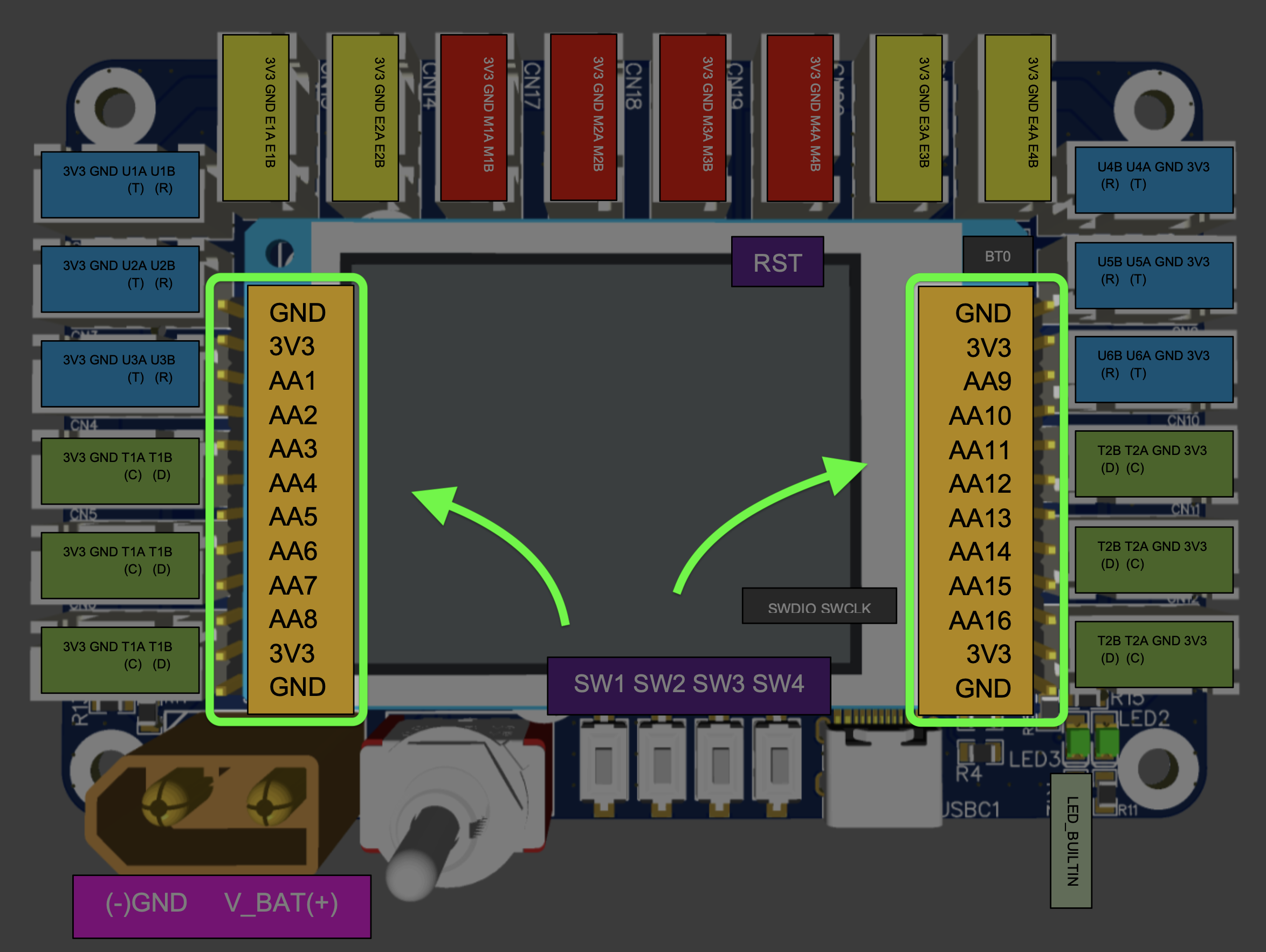
Each row looks like this, from top to bottom:
| Left row | Right row |
|---|---|
| GND | GND |
| 3V3 | 3V3 |
| AA1 | AA9 |
| AA2 | AA10 |
| ... | ... |
| AA8 | AA16 |
| 3V3 | 3V3 |
| GND | GND |
Look at the top 3 pins of the left row: GND, 3V3, AA1. These 3 pins sit next to each other, so they are a handy place to connect a grayscale sensor.
Our grayscale sensor has 3 pins, labelled OUT, 5V and GND. Connect them to XRCU with 3 jumper wires:
| Grayscale sensor pin | Connect to XRCU |
|---|---|
| OUT | AA1 |
| 5V | 3V3 |
| GND | GND |
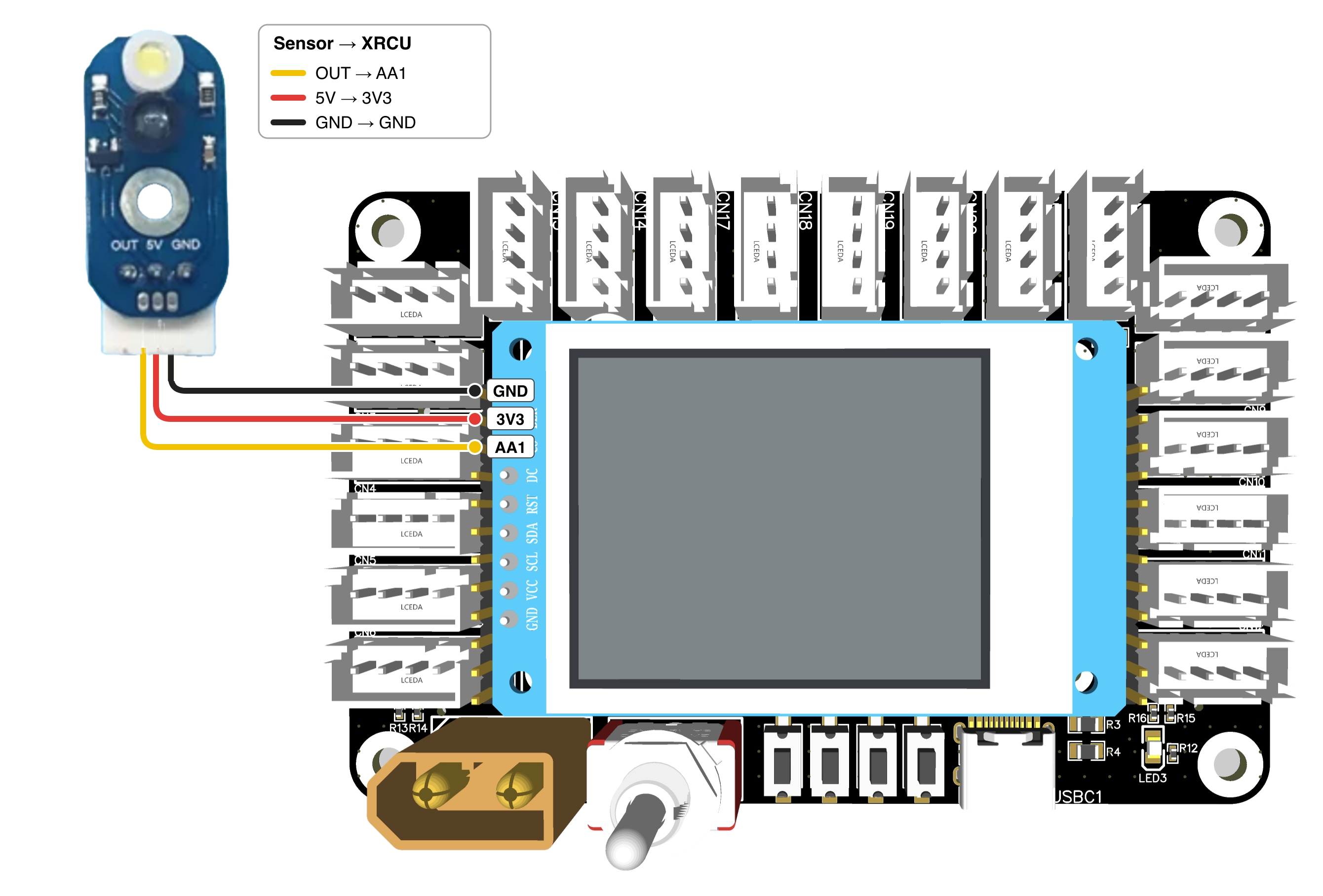
The same works for AA9, using the top 3 pins of the right row.
To use the analog inputs, we use the Ain library (Analog inputs). Write this line at the top of your program:
Then we can read a number from an analog pin with analog_read_raw(...):
Notice that we write analog_read_raw(1), not analog_read_raw(AA1). The Ain library uses channel numbers from 1 to 16: channel 1 is pin AA1, channel 2 is pin AA2, ..., channel 16 is pin AA16.
The number we get is called the raw value. It is a whole number from 0 to 4095. 0 means 0 volts, and 4095 means 3.3 volts.
Turn OFF XRCU. Connect a grayscale sensor to GND, 3V3 and AA1, as shown above. Turn ON XRCU, then upload the code above and run it. Open the serial monitor.
Hold the sensor about 1 cm above a white surface, then above a black surface. Write down the raw value on white and the raw value on black. Is the number bigger on white or on black?
Record a video showing the sensor and the serial monitor while you move the sensor between white and black. Submit this video to your assignment portal at checkpoint 7.1.
Raw values are not always the same. They change when:
Let's see this with our own eyes.
Turn OFF XRCU. Move the 3 wires of your grayscale sensor to the top of the right row: GND, 3V3, AA9. Change your program to read channel 9 instead of channel 1.
Upload and run it. Measure the raw values on white and on black again, but this time at 2 different heights: about 0.5 cm and about 2 cm above the surface.
Fill in this table:
| Height | Raw value on white | Raw value on black |
|---|---|---|
| 0.5 cm | ||
| 2 cm |
Do the numbers change when the height changes?
Take a photo of your filled table, and record a video showing your measurements. Submit them to your assignment portal at checkpoint 7.2.
To tell white from black, we can choose a number in the middle, called a threshold:
For example, if white gives 3000 and black gives 1000, the threshold is (3000 + 1000) / 2 = 2000. If a sensor gives 1000 on white and 3000 on black instead, the threshold is still 2000, but the meaning of "bigger" is the opposite. So you also need to remember which side is black.
Use your measurements at 0.5 cm from checkpoint 7.2 to work out a threshold. Write a program, so that:
(Hint: remember pinMode(LED_BUILTIN, OUTPUT); from the Digital I/O chapter.)
Upload and run it. Test it at 0.5 cm, then at 2 cm. Does it still work at 2 cm?
Record a video showing the sensor and the LED at both heights. Submit this video to your assignment portal at checkpoint 7.3.
In checkpoint 7.3, you may find that your threshold stops working when something changes, like the height of the sensor. Then you need to measure again and change your code. That's annoying!
Calibration lets XRCU measure for us. During calibration, we move the sensor over white and black, and XRCU remembers the smallest and the biggest raw values of every channel.
After calibration, analog_read_mapped(...) gives us a better number:
This is true for every sensor, at any height, whether the sensor gives bigger numbers on white or on black. XRCU even saves the calibration, so it is still there after you turn XRCU OFF.
There are 3 functions for calibration:
| Code | What it does |
|---|---|
| analog_start_cal() | Start a new calibration. |
| analog_single_cal() | Measure all channels once and remember the smallest and biggest values. |
| analog_end_cal() | Finish the calibration and save it inside XRCU. |
Here is a program that uses the buttons from the Buttons chapter to control the calibration:
A while loop repeats the code inside its { } again and again, as long as the condition is true. while (!button1.isClicked()) {} means "keep waiting while SW1 is not clicked".
Keep your grayscale sensor on AA9. Upload the calibration program above and run it.
Open the serial monitor. What numbers do you see on white and on black?
Now run the program again, but this time calibrate at a height of 2 cm. After calibration, what numbers do you see on white and on black at 2 cm?
Record a video showing both calibrations and the serial monitor. Submit this video to your assignment portal at checkpoint 7.4.
Most of the time, we only want to know: "Is my sensor on the line or not?" After calibration, the threshold is always 2000, in the middle of 100 and 3900. So we can simply write analog_read_mapped(9) > 2000.
The Ain library has a shortcut for this: analog_read_digital(...). It gives true if the sensor sees the uncommon color (the line), and false if it sees the common color (the floor).
Notice that this program has no calibration code. It uses the calibration you saved in checkpoint 7.4.
Keep your grayscale sensor on AA9. Write a program, so that:
Use analog_read_digital(...), and do not calibrate again in this program.
Upload and run it. Move the sensor slowly across a black line on a white surface.
Record a video showing the sensor, the LED and the serial monitor. Submit this video to your assignment portal at checkpoint 7.5.
| Code | What it does |
|---|---|
| #include <Ain.h> | Lets us use the Ain library. |
| analog_read_raw(1) | Raw value of channel 1 (pin AA1): 0 to 4095. |
| analog_start_cal() | Start a new calibration. Put the sensor on the floor color first! |
| analog_single_cal() | Measure all channels once during calibration. |
| analog_end_cal() | Finish and save the calibration. |
| analog_read_mapped(1) | Calibrated value of channel 1: about 100 on the floor, about 3900 on the line. |
| analog_read_digital(1) | true if channel 1 is on the line, false if on the floor. |
Remember: the Ain library uses channel numbers 1 to 16, not pin names.
 1.18.0