 |
JM9 XRCU Tutorials 0.0.1a
Learn how to program XRCU
|
|
JM9 XRCU Tutorials 0.0.1a
Learn how to program XRCU
|
Buttons are the easiest way to talk to your robot without a computer. You can press a button to start your robot, to choose a program, or to change a setting.
XRCU has 4 buttons below the monitor. From left to right, they are called SW1, SW2, SW3 and SW4.
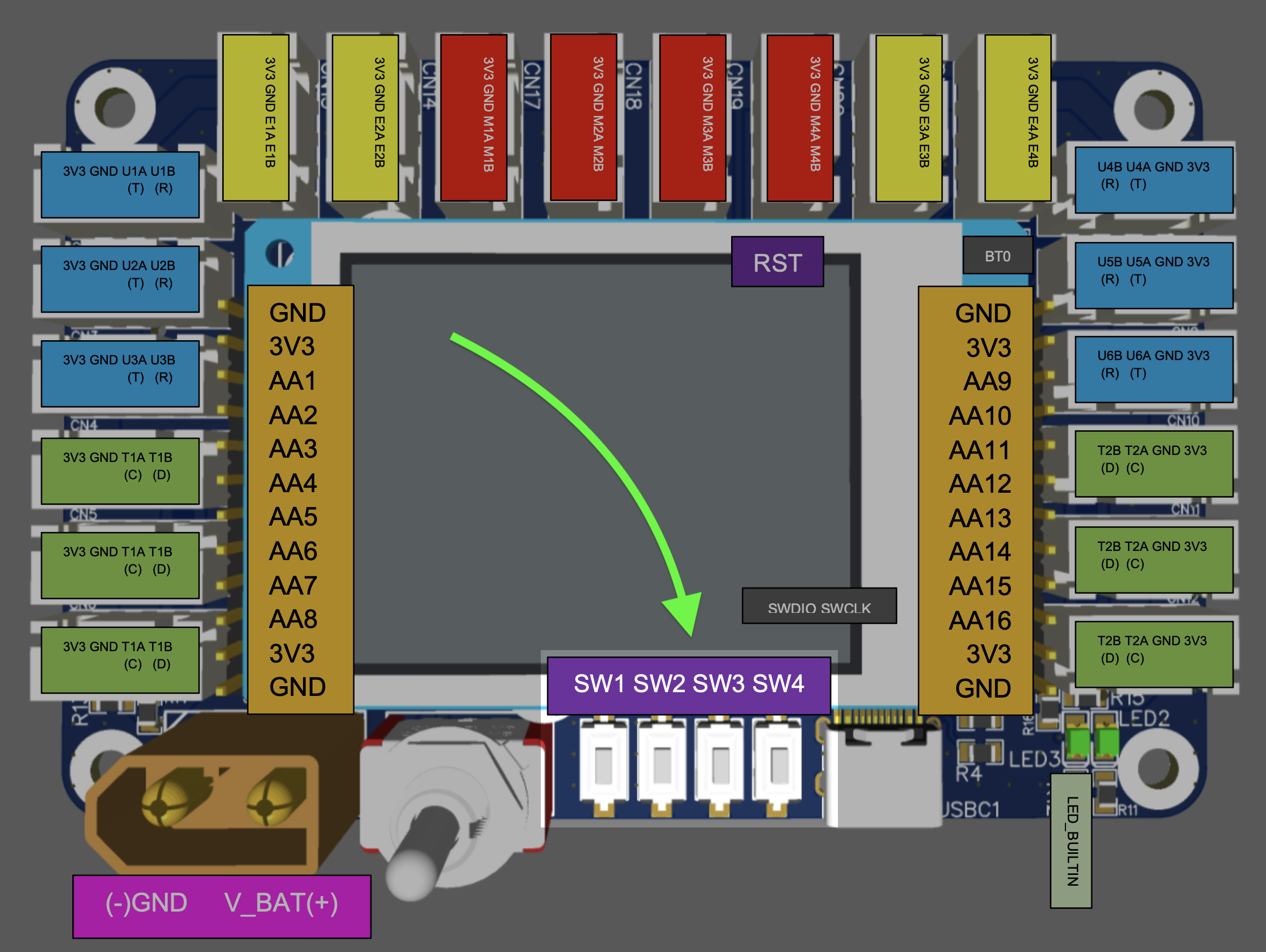
In this chapter, we will learn how to read these buttons in a few different ways.
In the last chapter, we learnt that SW1 to SW4 are pin names. So we can read a button with digitalRead(...), like this:
If you try this, you will see something strange. The serial monitor prints 1 (HIGH) when the button is NOT pressed, and prints 0 (LOW) when the button IS pressed. It is upside down!
This is because of how the buttons are wired on XRCU. When you press a button, the pin is connected to GND, so the pin becomes LOW.
It is easy to get confused by this. So XRCU gives us a better tool: the Buttons library.
A library is some code that someone else has written for us, so we can use it directly. To use the Buttons library, write this line at the very top of your program:
After that, we can use 4 ready-made buttons:
| Name in code | Button on XRCU |
|---|---|
| button1 | SW1 |
| button2 | SW2 |
| button3 | SW3 |
| button4 | SW4 |
To ask a button something, we write its name, a dot ., then the question. You have already done this before with Serial.begin(9600) and Serial.println(...).
Our first question is isPressed(). It gives true if the button is being pressed right now, and false if it is not. No more upside down!
Upload the code above to XRCU and run it. Press and hold SW1. The LED should turn ON. Release SW1. The LED should turn OFF.
Now change the program, so that:
Record a video showing the LED and the serial monitor while you press and release SW3 a few times. Submit this video to your assignment portal at checkpoint 6.1.
Let's make a click counter. Every time we press SW1, we want the number to go up by 1.
Try it. Press SW1 once, as fast as you can. You will see the counter jump up by 5, 10 or even more! Why?
Your finger stays on the button for a short time, maybe 0.1 seconds. But loop() runs again every 0.01 seconds. So loop() sees the button being pressed many times during 1 press.
To fix this, we use another question: isClicked().
isClicked() works like a doorbell message:
So 1 press only gives 1 true. That's exactly what a counter needs!
XRCU checks the buttons by itself every 0.05 seconds, in the background. It does this even when your program is busy doing a delay(...). That means a click is remembered until your program asks for it.
Upload the click counter with button1.isPressed(). Press SW1 once quickly and observe how much the counter goes up.
Then change button1.isPressed() to button1.isClicked(), and upload again. Press SW1 once quickly again. How much does the counter go up now?
Finally, change delay(10); to delay(3000); and upload again. Press SW1 once quickly, right after a new number is printed. Does the counter still go up, even though your program was waiting when you pressed the button?
Record a video showing the serial monitor in all 3 tests. Submit this video to your assignment portal at checkpoint 6.2.
Every click has 2 moments:
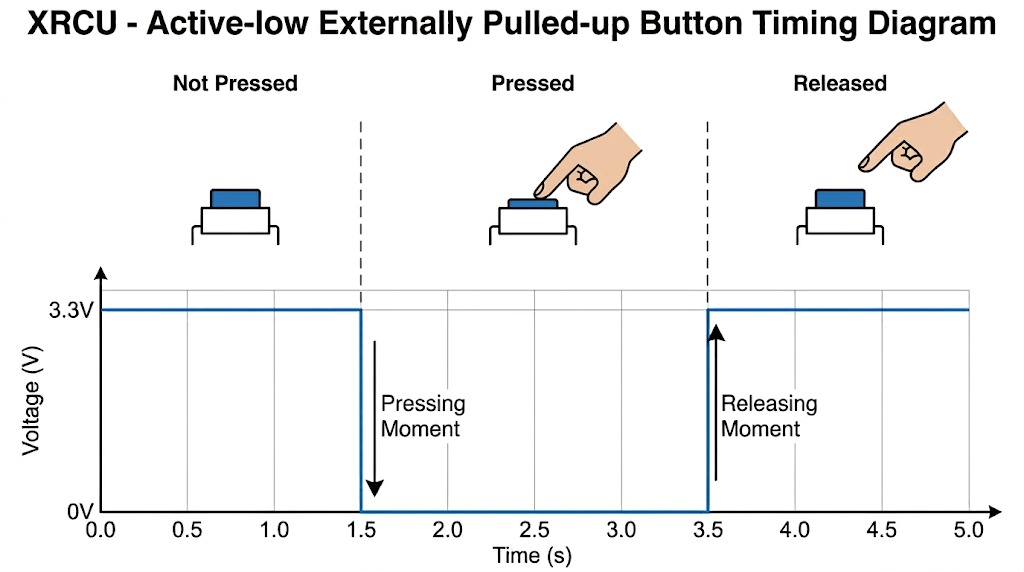
By default, isClicked() counts a click at the pressing moment. We can tell a button to count the click at the releasing moment instead:
Button::TransitionEdge::RELEASING is a long name, but you can read it from left to right: "for a Button, choose the transition edge called RELEASING". The other choice is Button::TransitionEdge::PRESSING.
Why would we want to click when releasing? Imagine you press a button to start your robot. If the robot starts moving at the pressing moment, your finger is still on the robot! You may push the robot to a wrong direction, or your finger may get hurt. If the robot starts at the releasing moment, your finger has already left the robot.
Write a program where:
Upload and run it. Press and hold SW1 for 3 seconds, then release it. When does the LED turn on? Press and hold SW2 for 3 seconds, then release it. When does the LED turn off?
Record a video showing your fingers and the LED during the test above. Submit this video to your assignment portal at checkpoint 6.3.
Think about the volume button on a TV remote control. 1 click makes the volume go up by 1. If you hold the button, the volume keeps going up by itself. These repeating clicks are called pulse clicks.
Our buttons can do this too. We just need to turn on pulse clicks in setup():
With pulse clicks turned on:
We can also change these 2 numbers:
Make a "volume control" that prints a number from 0 to 100 on the serial monitor:
Upload and run it. Click SW2 a few times one by one, then hold SW2 until the volume reaches 100. Then hold SW1 until the volume reaches 0.
Record a video showing your fingers and the serial monitor during the test above. Submit this video to your assignment portal at checkpoint 6.4.
In a competition, you may feel nervous and your hands may shake. You may press 2 buttons at the same time by accident, and your robot may run the wrong program!
To protect us from this, buttons have a secure mode. When secure mode is on:
Secure mode works best with the RELEASING moment. With PRESSING, the first button already gives its click before you press the second button by accident. With RELEASING, no click is given until you let go, so secure mode can stop all the clicks.
Secure mode must be turned on for every button that you use:
Write a program for all 4 buttons, where:
Upload and run it, then do these tests:
Which tests print something? Which tests print nothing? Why?
Record a video showing your fingers and the serial monitor during all 4 tests. Submit this video to your assignment portal at checkpoint 6.5.
| Code | What it does |
|---|---|
| #include <Buttons.h> | Lets us use button1 to button4. |
| button1.isPressed() | true if the button is being pressed right now. |
| button1.isClicked() | true once for each click. The click is remembered until we ask. |
| button1.setSingleClickTransitionEdge(Button::TransitionEdge::PRESSING) | Count clicks at the pressing moment (default). |
| button1.setSingleClickTransitionEdge(Button::TransitionEdge::RELEASING) | Count clicks at the releasing moment. |
| button1.setPulseClickEnabled(true) | Holding the button gives repeating clicks. |
| button1.setPulseDelayStartPeriod(500) | Start repeating after holding for 500 ms (default: 1000 ms). |
| button1.setPulseClicksMinimumInterval(100) | Repeat at most once every 100 ms (default: 50 ms). |
| button1.setSecureModeEnabled(true) | No clicks when 2 or more buttons are pressed together. |
 1.18.0