 |
JM9 XRCU Tutorials 0.0.1a
Learn how to program XRCU
|
|
JM9 XRCU Tutorials 0.0.1a
Learn how to program XRCU
|
Digital signals are the language of electronics. A digital signal only has 2 levels: HIGH (there is a voltage) and LOW (there is no voltage). Your computer, your phone and your robot all talk with digital signals.
I/O means Input and Output:
In this chapter, we will learn how to use the pins of XRCU for digital inputs and outputs.
You might have seen something like this in your previous robotics classes:
Good news: pinMode(...), digitalWrite(...) and digitalRead(...) work on XRCU in exactly the same way as on an Arduino.
The only difference is the pin names. On an Arduino UNO, the pins are numbered from 0 to 13. On XRCU, the pins have names made of letters and numbers, like U3B.
Let's start with an easy one. XRCU has a small LED on the board, called LED_BUILTIN.
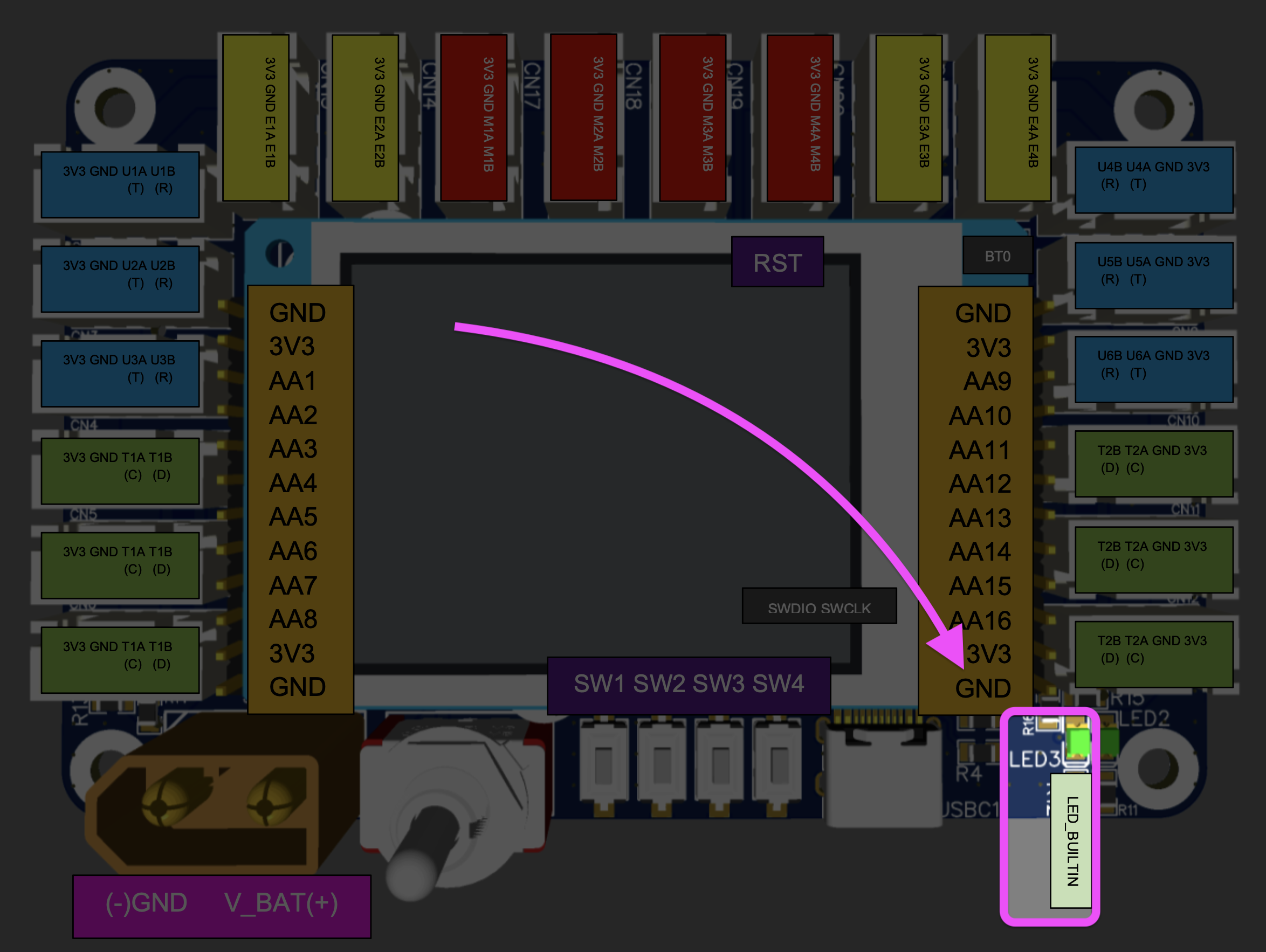
We use LED_BUILTIN as the pin name:
Upload the code above to XRCU and run it. The LED should blink: ON for 1 second, then OFF for 1 second.
Then change the program, so that the LED is ON for 0.2 seconds and OFF for 0.8 seconds.
Record a video showing the LED blinking with your new program. Submit this video to your assignment portal at checkpoint 5.1.
Now let's look at the other pins. Here is the pinout diagram of XRCU.
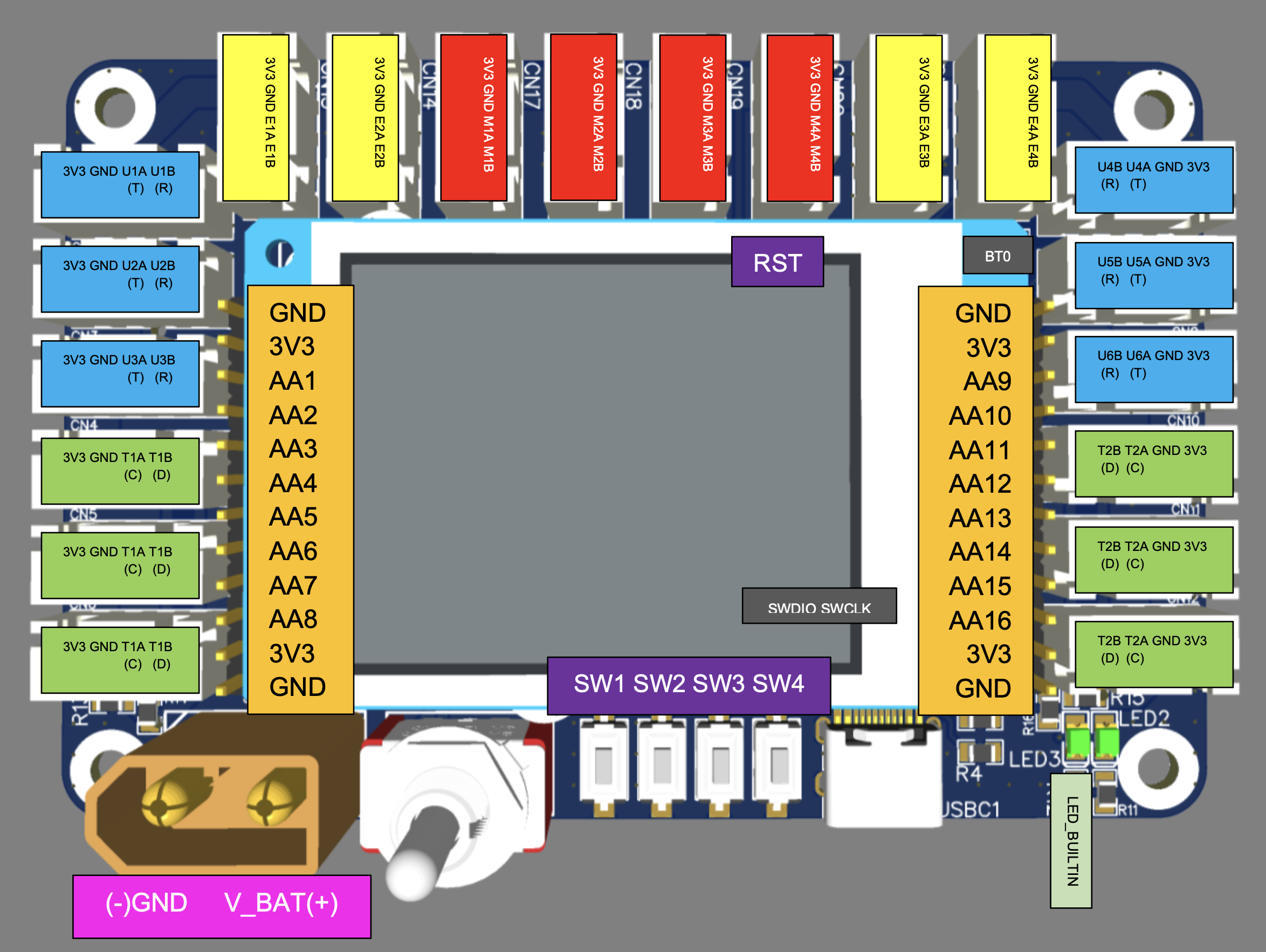
Look at the white plastic sockets around the board. Each socket has 4 pins. We call each socket a port. Every port has a name, like U3, T1, E2 or M1.
The 4 pins of a port are always:
| Pin | Meaning |
|---|---|
| 3V3 | Power: 3.3 volts. |
| GND | Ground: 0 volts. The negative side of the power. |
| A pin | A signal pin. Its name is the port name + A, e.g. U3A. |
| B pin | A signal pin. Its name is the port name + B, e.g. U3B. |
3V3 and GND give power to the things you connect. A and B pins are the ones we use in our code. Every A and B pin can be used for digital input and output.
We will learn why the ports start with different letters (M, E, U and T) in later chapters. For now, they all work the same for digital I/O.
You do not need to remember all the pin names. If you forget, just flip XRCU over. The pin names are printed on the back of the board.
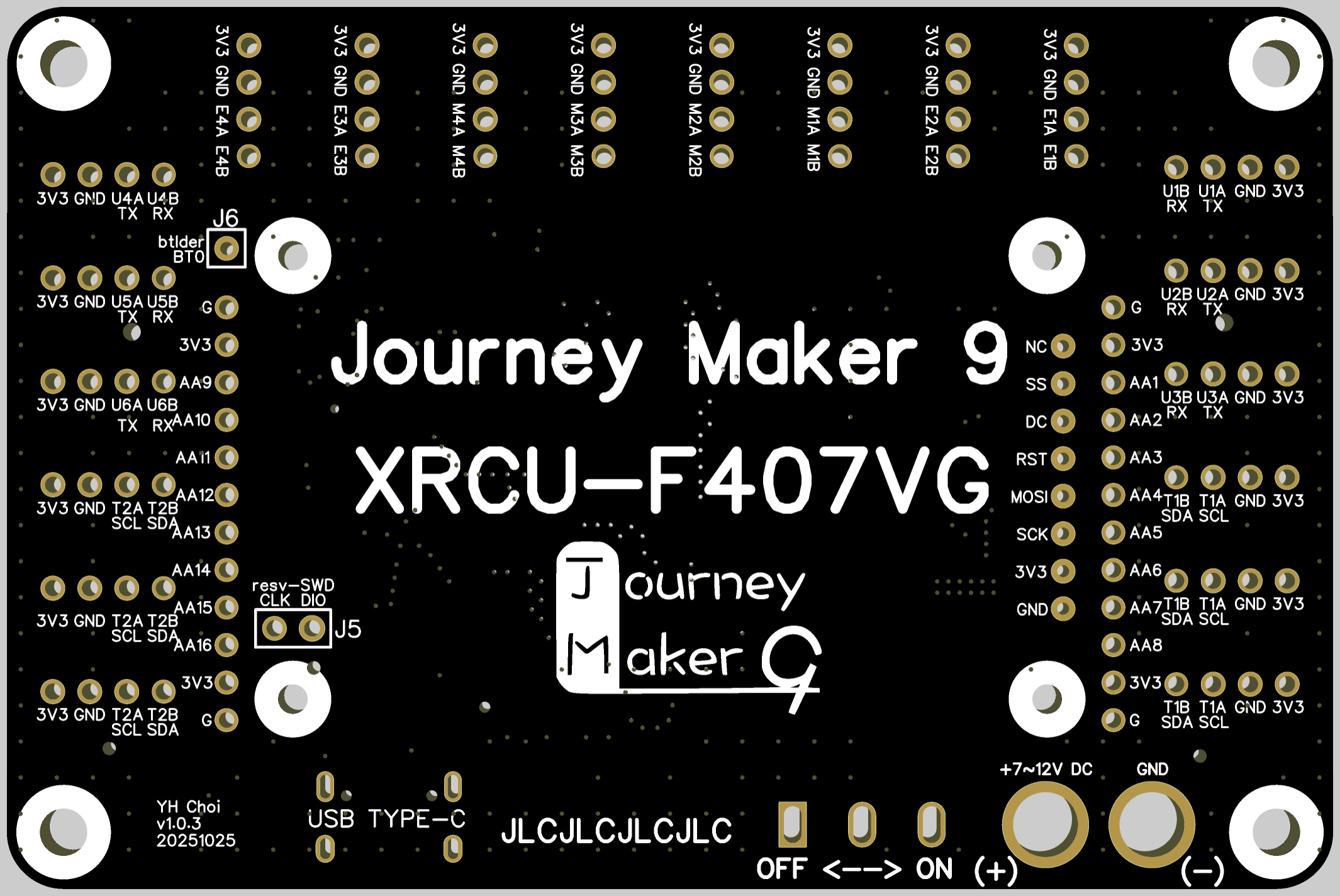
Turn XRCU over and find the labels on the back of the board. Find the 4 pins of port U3 (on the left) and port U6 (on the right). For each port, point at each pin one by one, and say its name out loud (e.g. "this is 3V3, this is GND, ...").
Record a video of yourself pointing at the 8 pins and saying their names. Submit this video to your assignment portal at checkpoint 5.2.
Now let's use a port pin to control an LED module.
An LED module has 3 pins. The labels may look a bit different on different modules, but they usually mean:
| LED module pin | Connect to XRCU |
|---|---|
| GND (or G, or -) | GND |
| VCC (or V, or +) | 3V3 |
| S (or IN, or SIG) | a signal pin, e.g. U3B |
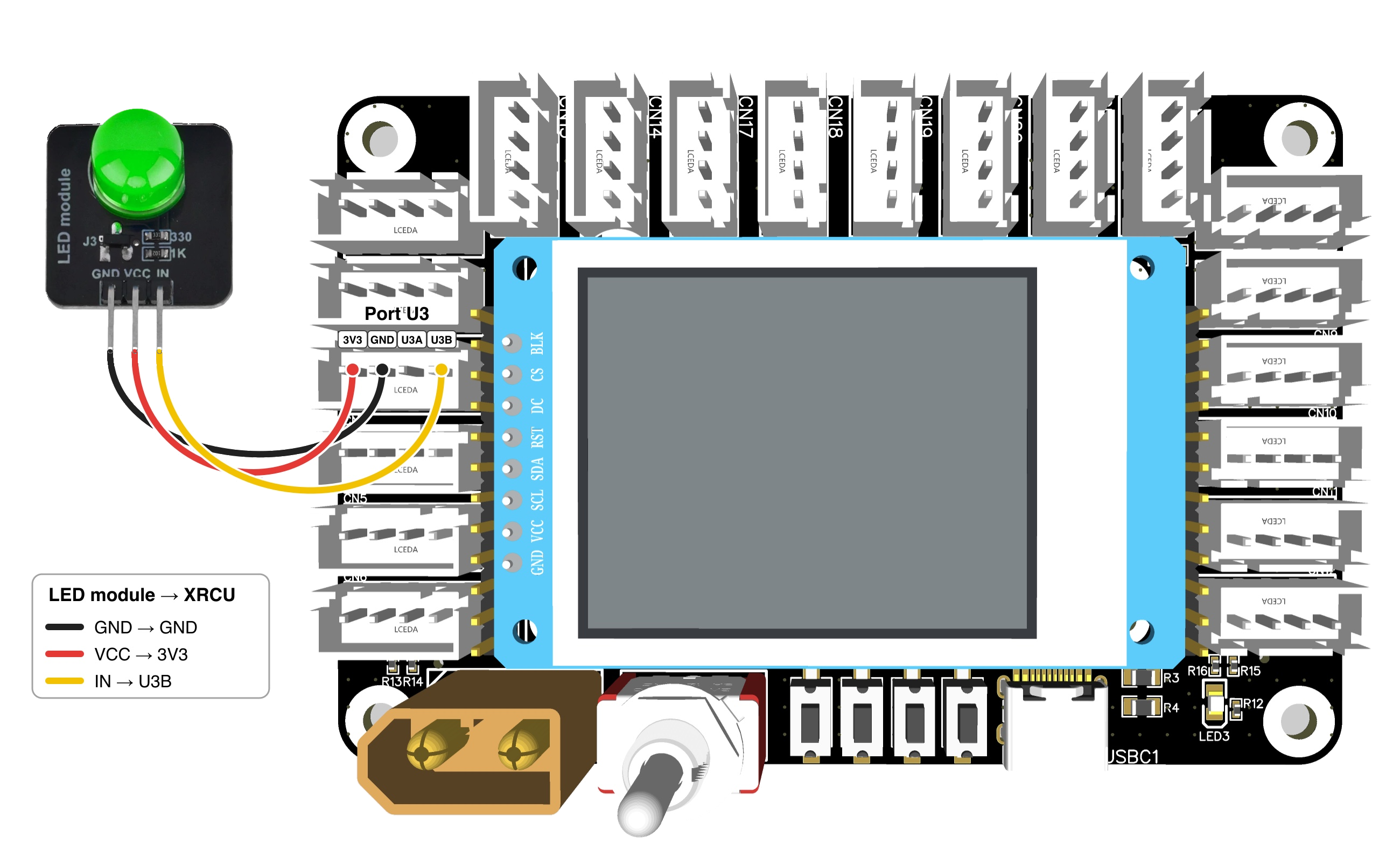
Use 3 jumper wires to connect your LED module to port U3. Then we only need to change the pin name in our code:
Turn OFF XRCU. Connect your LED module to port U3 as shown above. Turn ON XRCU, then upload the code above and run it. The LED module should blink every second.
Record a video showing your wiring and the blinking LED module. Submit this video to your assignment portal at checkpoint 5.3.
Any A or B pin works in the same way. We can also use more than 1 pin in the same program. We just need to call pinMode(...) once for each pin.
Turn OFF XRCU. Move your LED module to port U6 on the right side, and connect its signal pin to U6A. Remember: the right side is a mirror image, so check the labels on the back!
Then write a program, so that the LED module and LED_BUILTIN take turns:
Record a video showing your wiring and both LEDs taking turns. Submit this video to your assignment portal at checkpoint 5.4.
Now let's go the other way: XRCU will read a signal. We will use a button module. It is connected in the same way as the LED module: GND to GND, VCC to 3V3, and S to a signal pin.
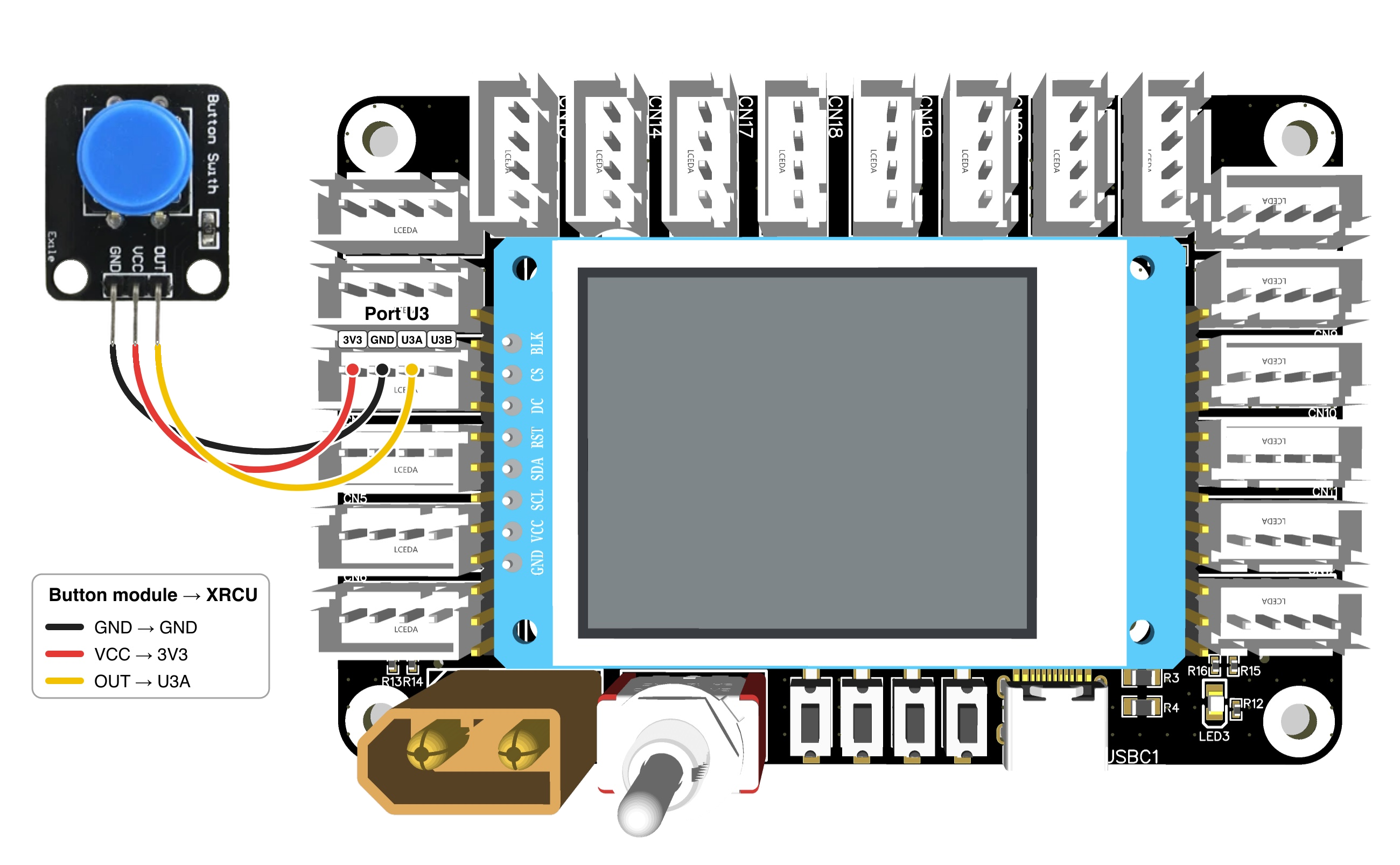
To read a pin, we set it as an INPUT pin, then use digitalRead(...). It gives HIGH (1) or LOW (0). Let's print it on the serial monitor, which we learnt in the last chapter.
Turn OFF XRCU. Connect your button module to U3A. Turn ON XRCU, then upload the code above and run it. Open the serial monitor.
Press and release the button a few times. Which number is printed when the button is pressed? Which number is printed when the button is released? (Different button modules may give different answers!)
Record a video showing the button and the serial monitor while you press and release the button. Submit this video to your assignment portal at checkpoint 5.5.
Now we can read a button and control an LED in the same program. Use U3A for the button module and U3B for the LED module. Port U3 only has 1 3V3 pin and 1 GND pin, so connect the power wires of the second module to another port, e.g. U2.
Turn OFF XRCU. Connect the button module to U3A and the LED module to U3B. Write a program, so that:
(Hint: use if and else with the result of digitalRead(U3A). Use your answer in checkpoint 5.5 to know which level means pressed.)
Record a video showing your wiring, the button and the LED module while you press and release the button. Submit this video to your assignment portal at checkpoint 5.6.
| Code | What it does |
|---|---|
| pinMode(U3B, OUTPUT) | Sets pin U3B as an output pin. |
| digitalWrite(U3B, HIGH) | Makes pin U3B output 3.3 volts. |
| digitalWrite(U3B, LOW) | Makes pin U3B output 0 volts. |
| pinMode(U3A, INPUT) | Sets pin U3A as an input pin. |
| digitalRead(U3A) | Reads pin U3A: HIGH (1) or LOW (0). |
| LED_BUILTIN | The pin name of the small LED on XRCU. |
Pin names follow the rule: port name + A or B, e.g. U3B, T1A, E2B. If you forget, flip XRCU over and read the labels on the back.
 1.18.0