 |
JM9 XRCU Tutorials 0.0.1a
Learn how to program XRCU
|
|
JM9 XRCU Tutorials 0.0.1a
Learn how to program XRCU
|
You should have received a board that looks like this.
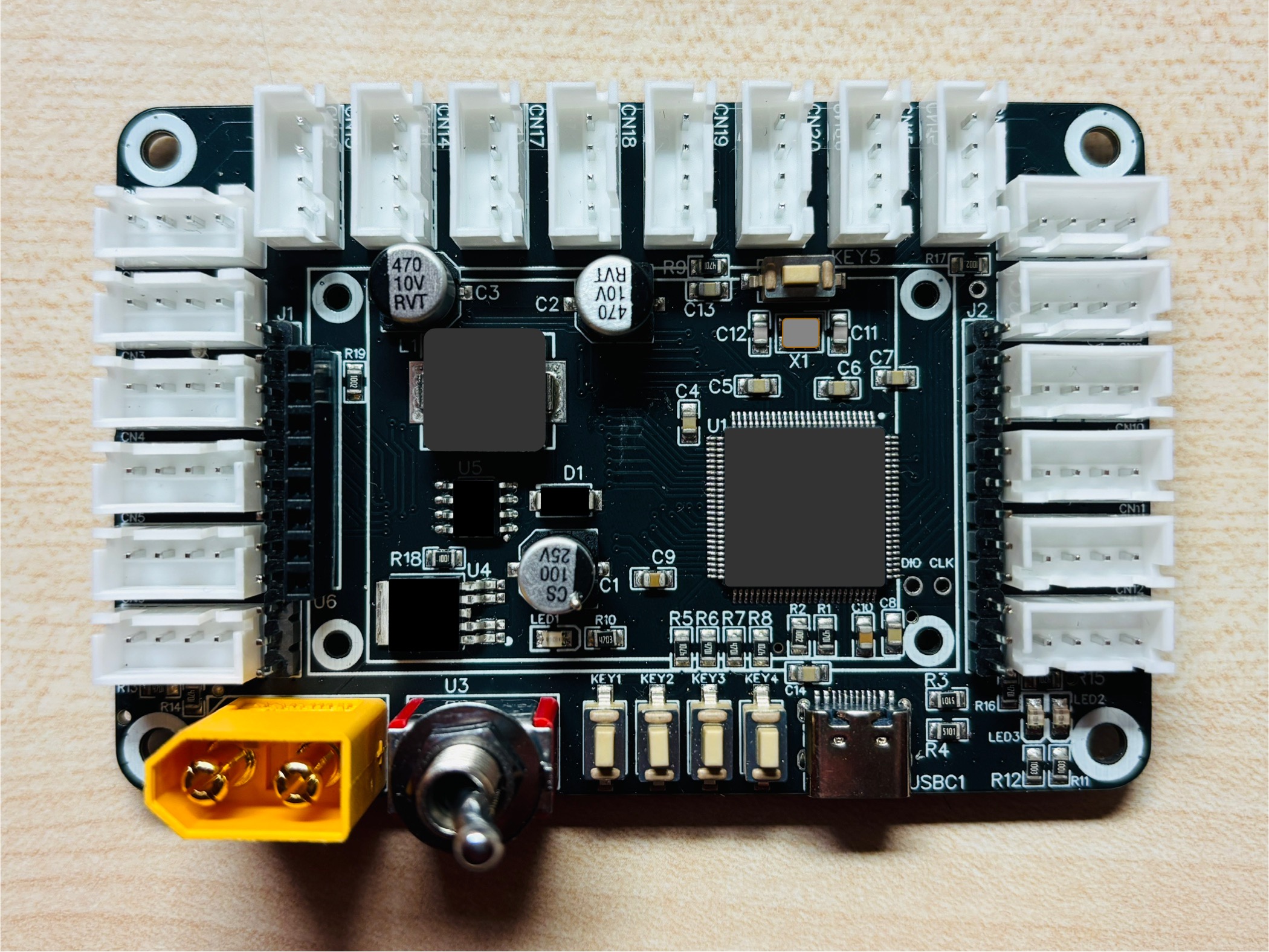
This is the mother board of XRCU. You will be using it throughout this robotics journey. Please inform your teacher if you cannot find this board in your package.
You should have received a monitor that looks like this.
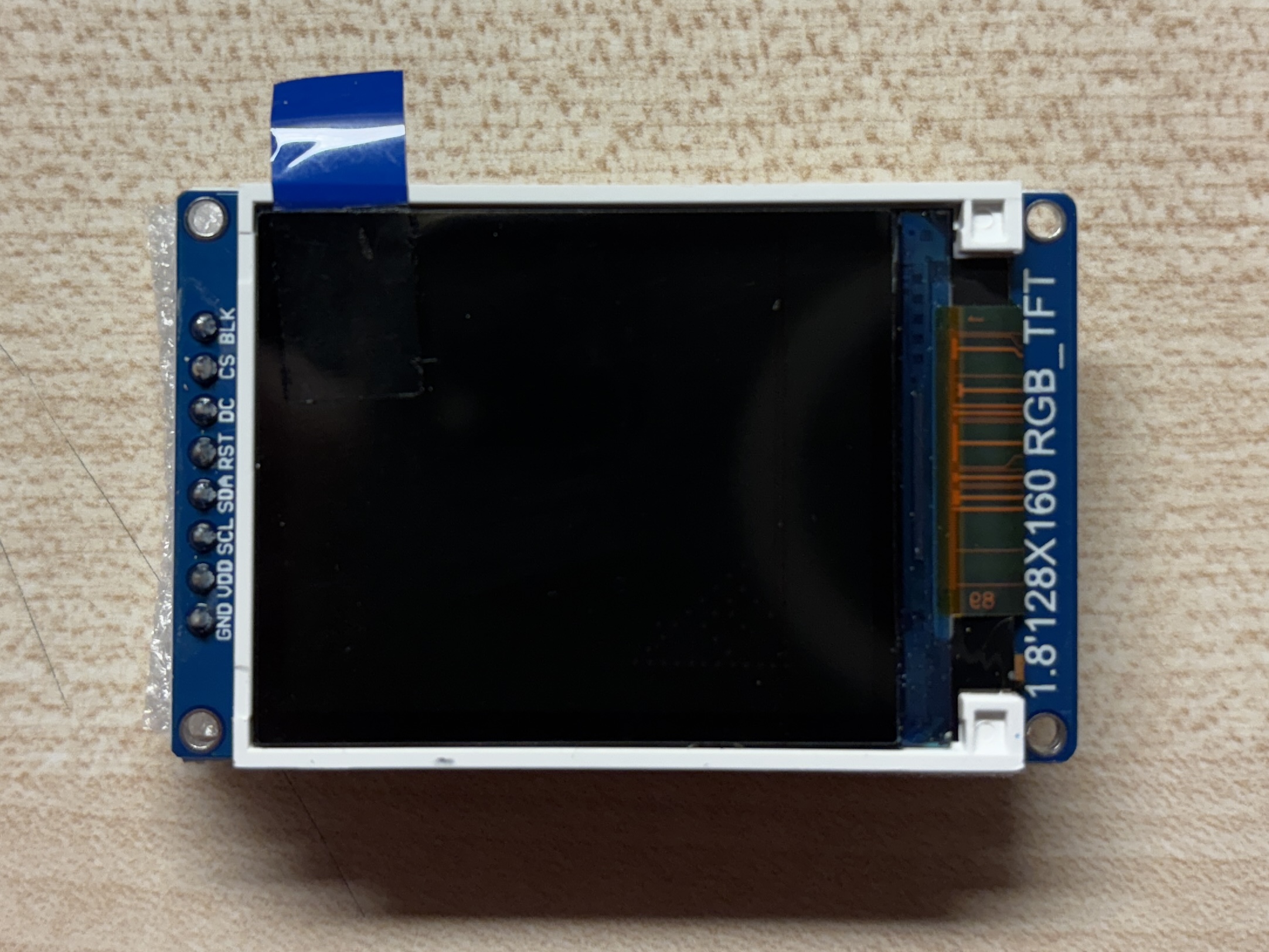
Some of you may receive this monitor inside a plastic case.
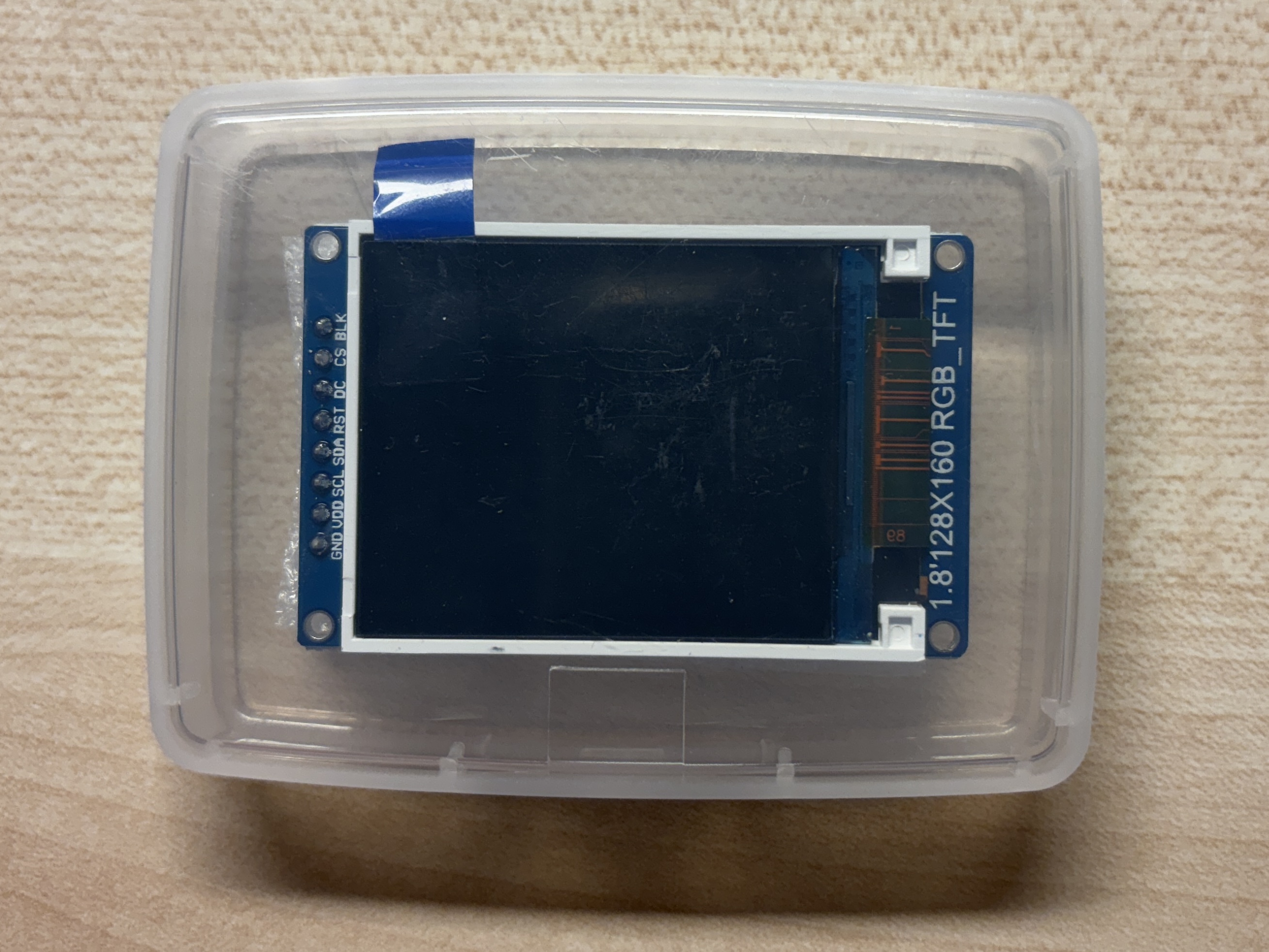
Gently take out the monitor from the case. Please inform your teacher if you cannot find this monitor in your package.
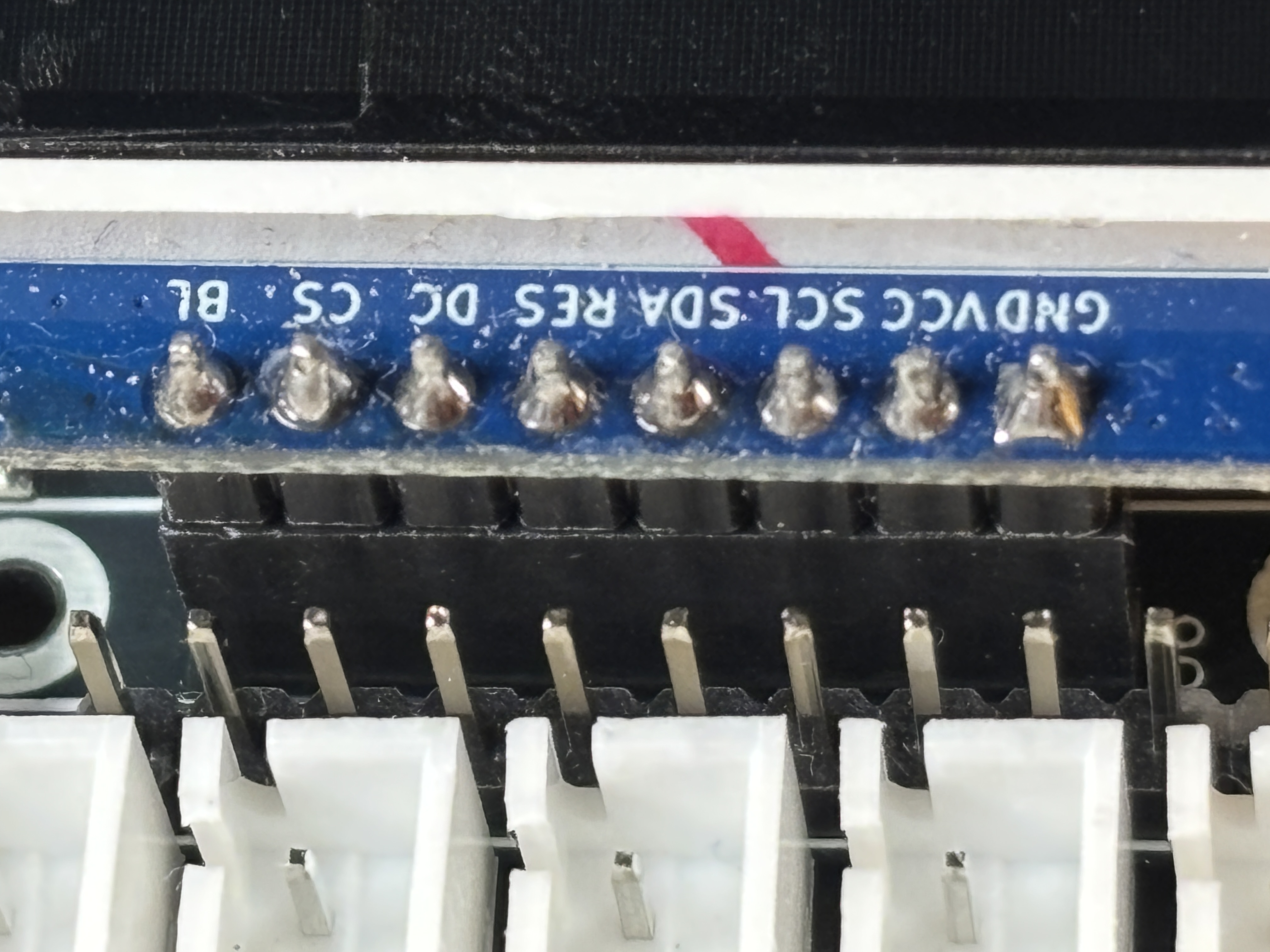
Plug your monitor onto the board as follows. Pay extra attention to the position and orientation of the monitor. The pins should exactly fit into the sockets.
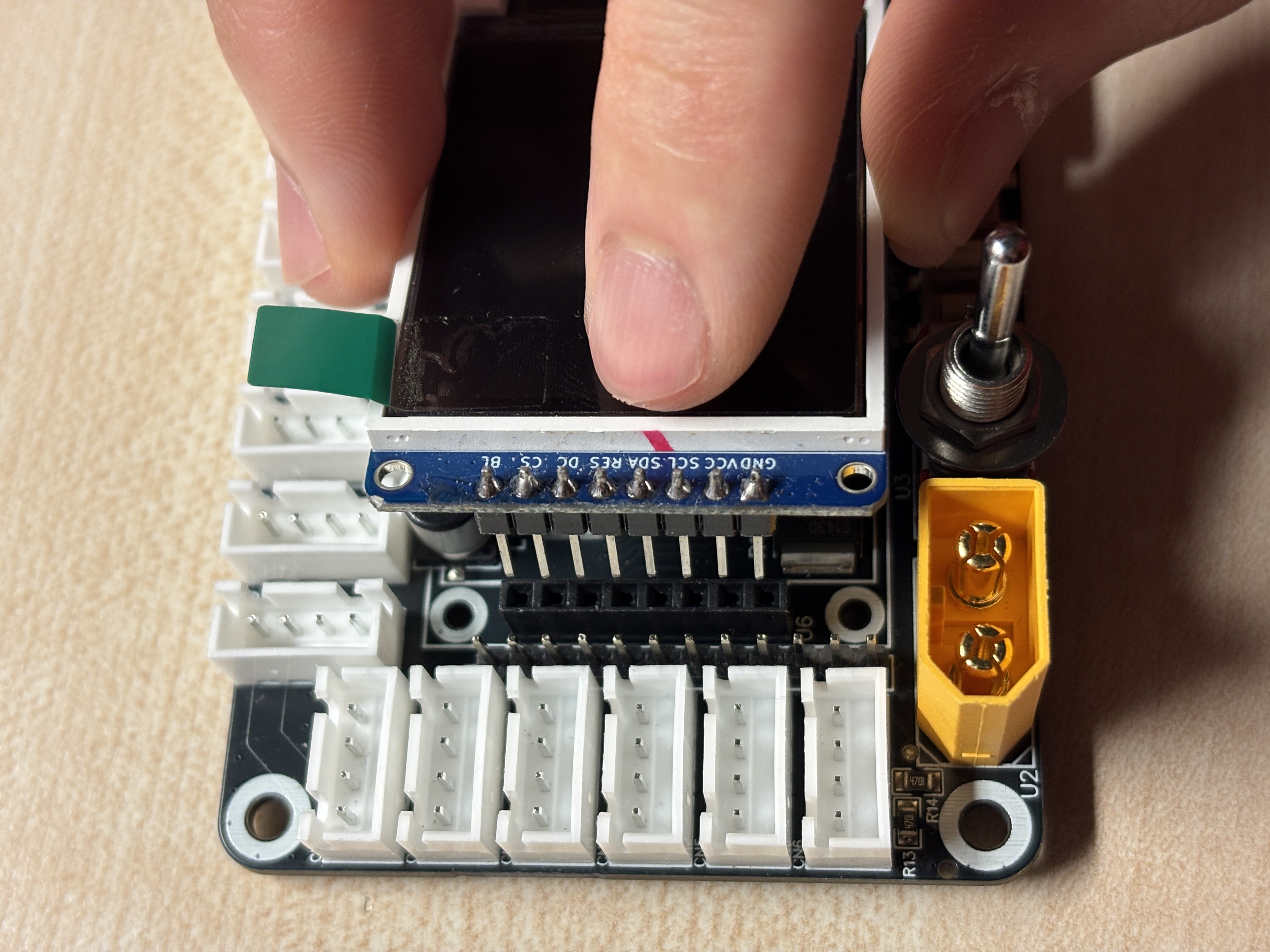
The pins should exactly fit into the sockets. Check if your device looks like this.
XRCU has a main switch that turns it on or off.
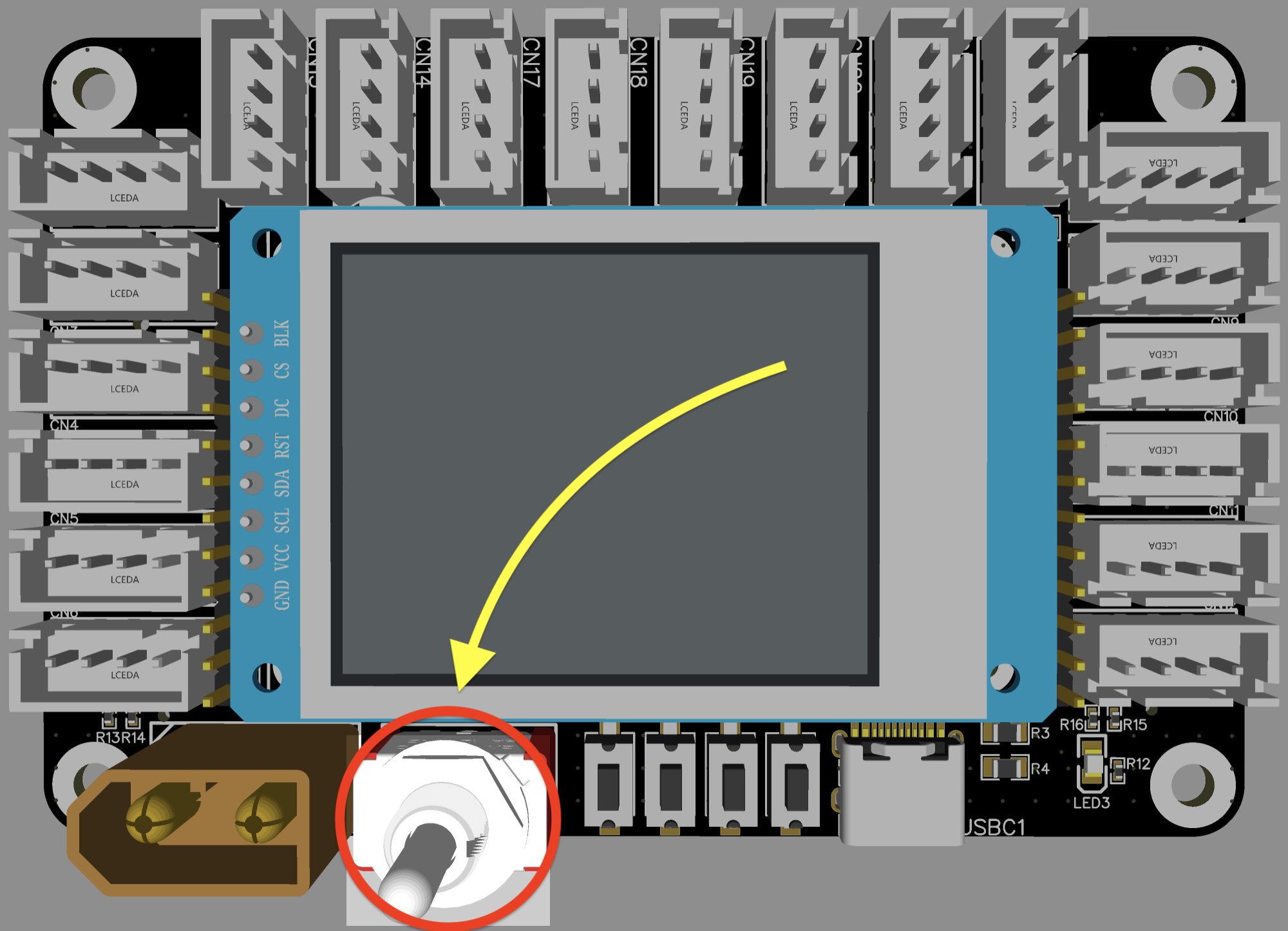
To turn ON XRCU, flip the switch to the LEFT. To turn OFF XRCU, flip the switch to the RIGHT.
In case you forget which side is ON and which side is OFF, you may take a look at the back of XRCU.
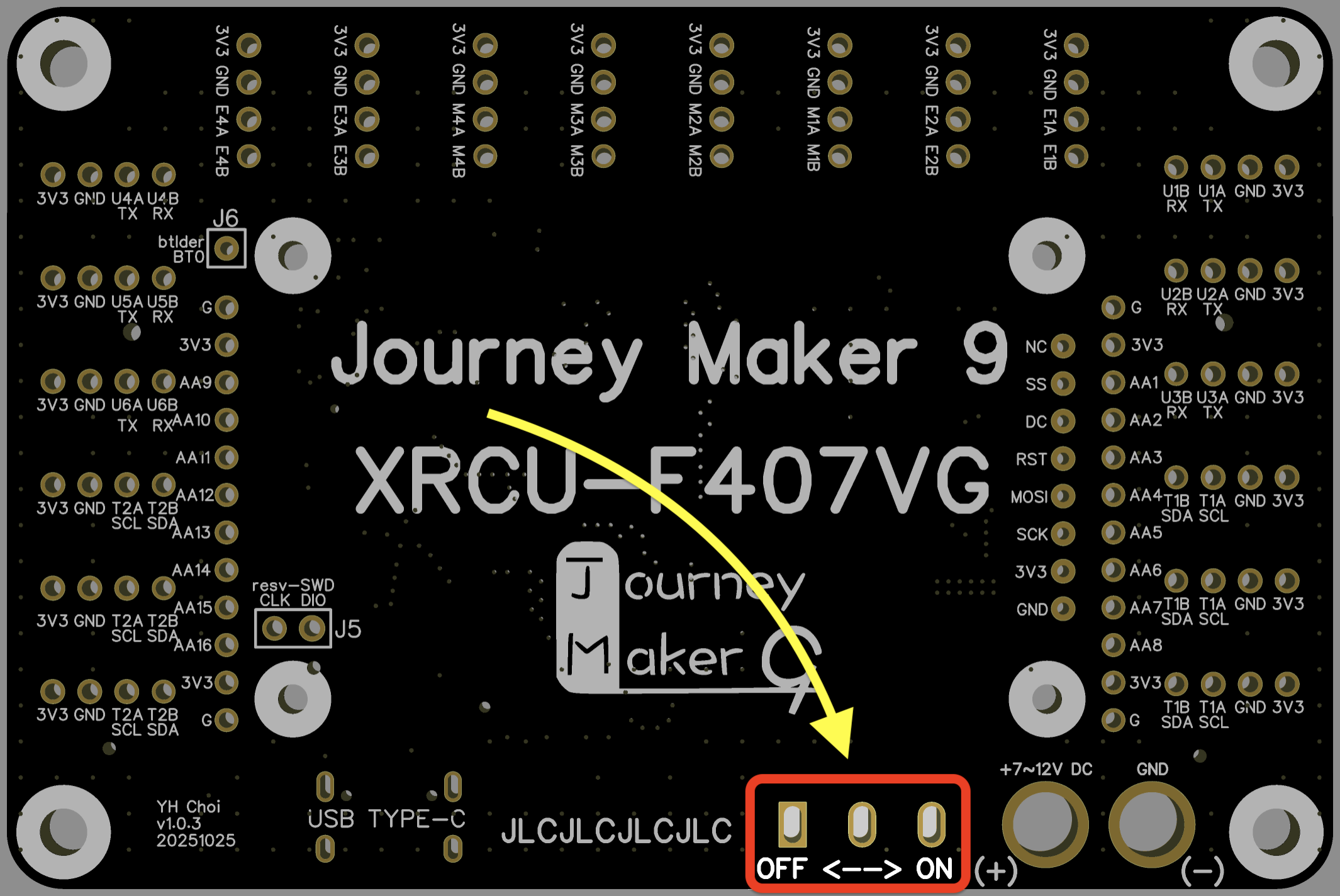
You can figure out which side is ON and which side is OFF now!
XRCU has a power socket to receive electricity to power itself and to provide electricity to remaining components connected to XRCU.
This power socket is located at the bottom left corner of XRCU.
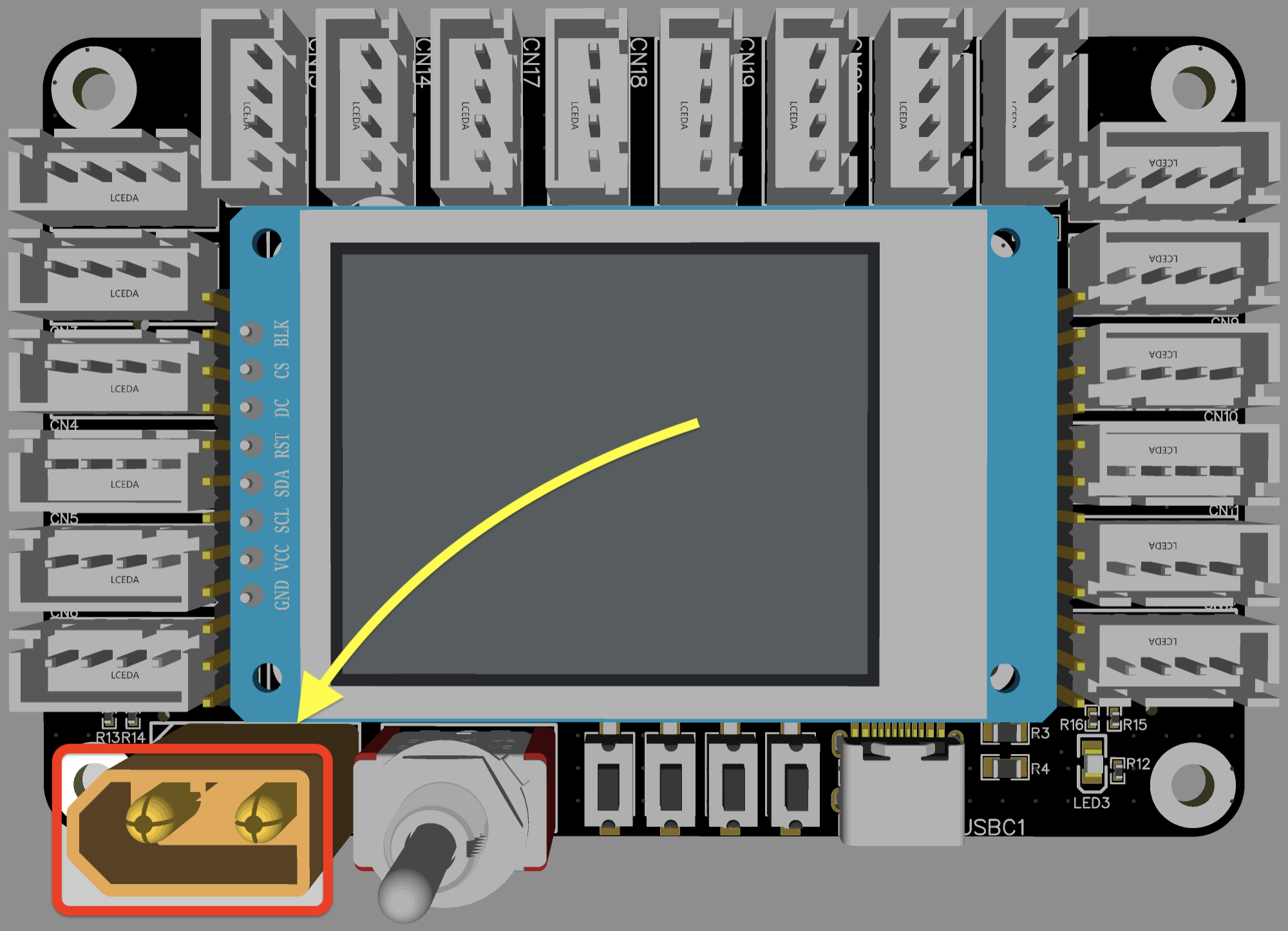
To power up XRCU, you should first turn OFF the main power switch. Then, make sure there are no electrical conductors touching the socket at the back of XRCU. Next, you may plug a 2-cell or 3-cell Li-Po battery into this power socket.
Alternatively, you may plug in any Direct Current (DC) of 7 - 12 V.
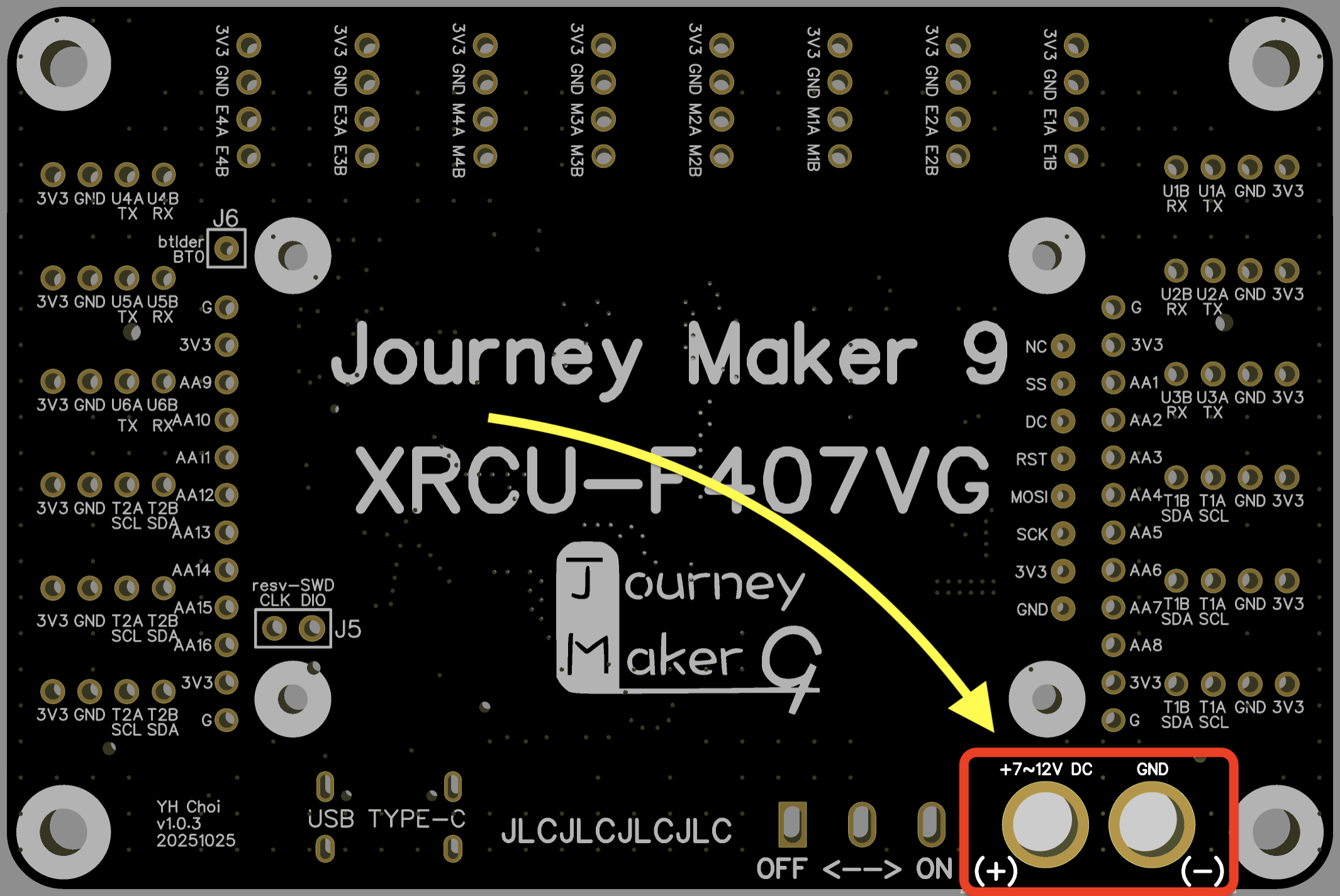
In case you forget which terminal is positive and which terminal is negative, you may take a look at the back side of XRCU.
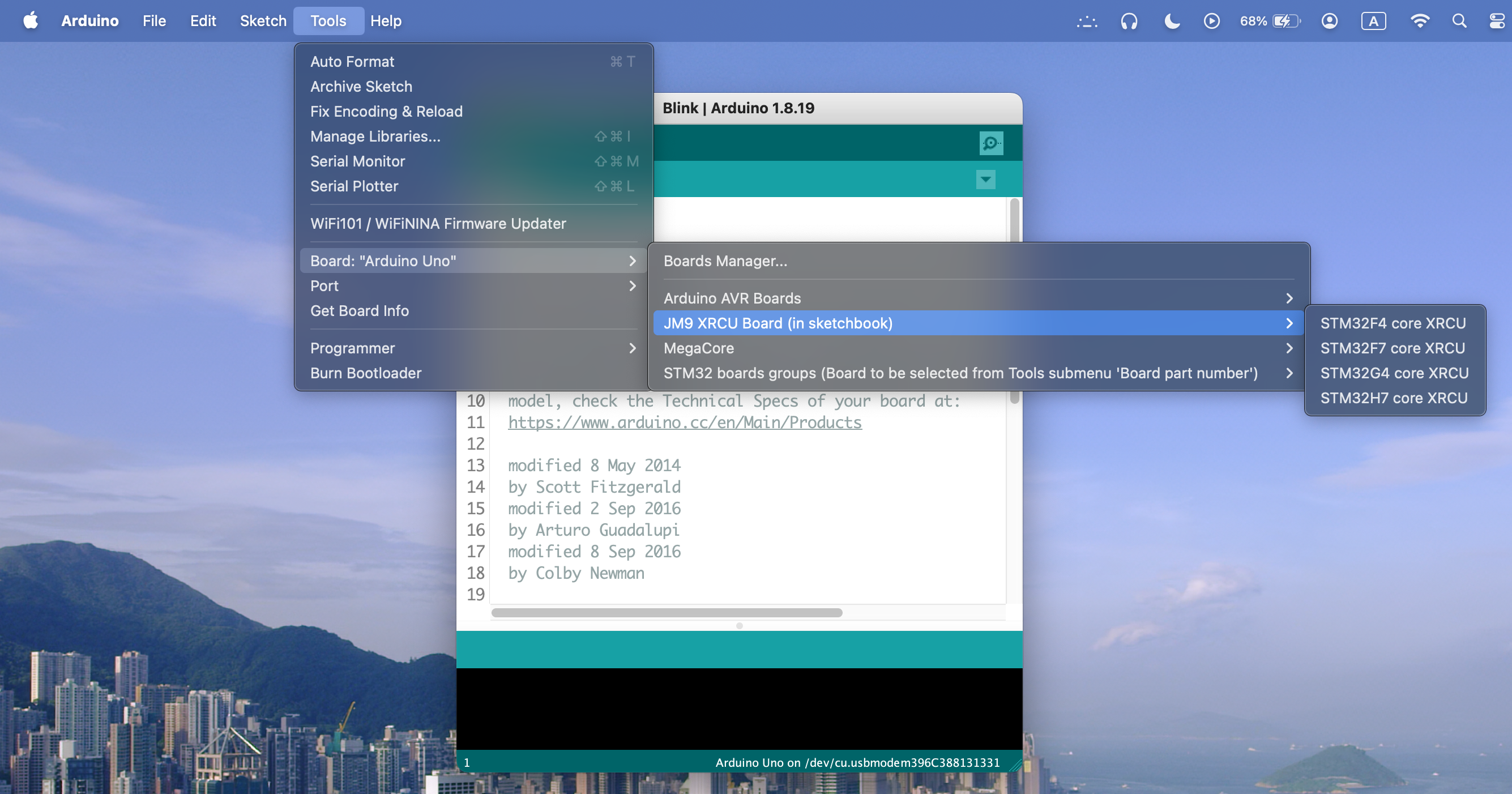
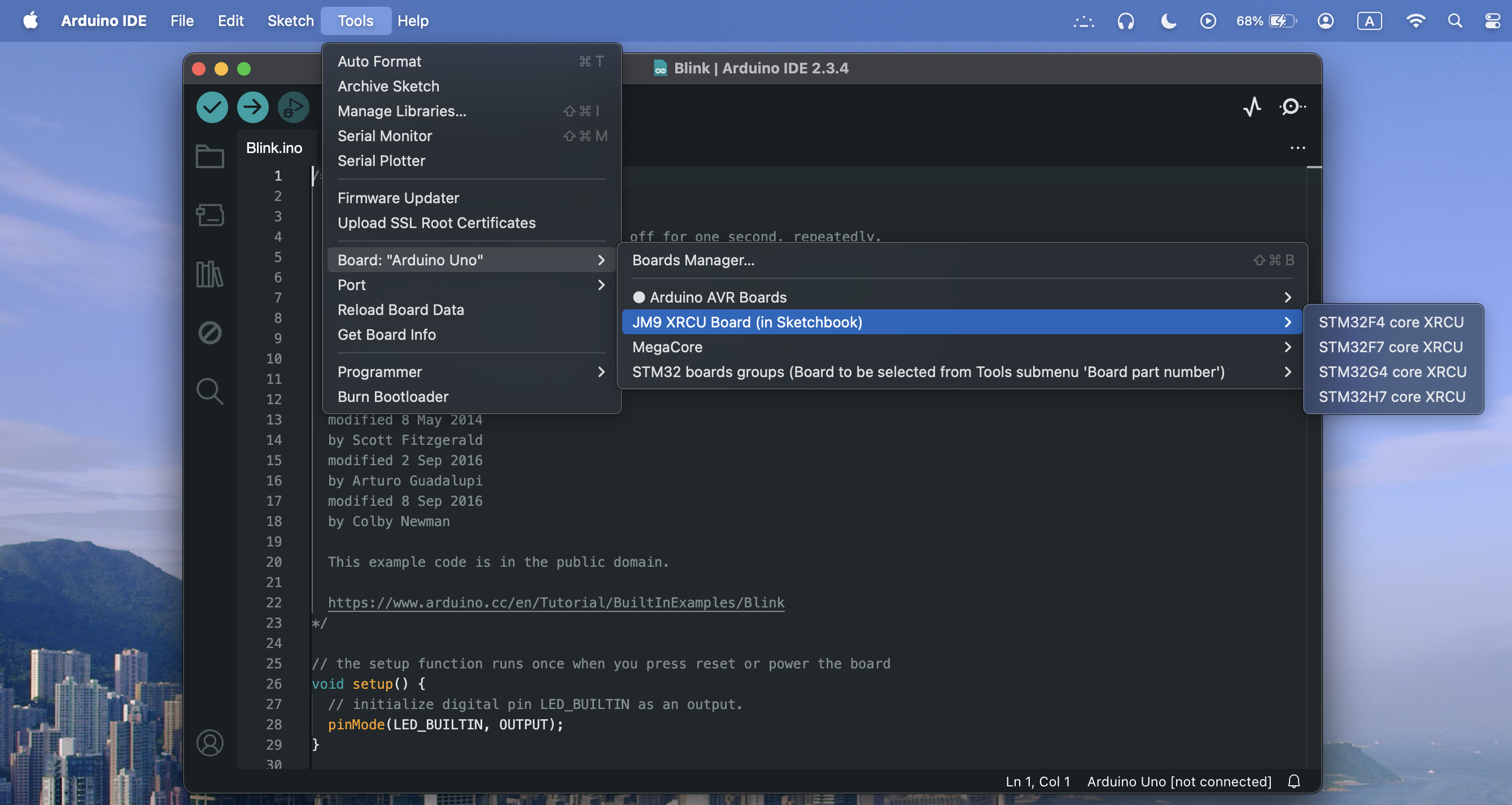
You may skip this section if your computer already has the platform installed.
In step 3, create the folders Arduino and hardware if they don't exist.
You may skip this section if your PCB is not ordered directly from a PCB factory.
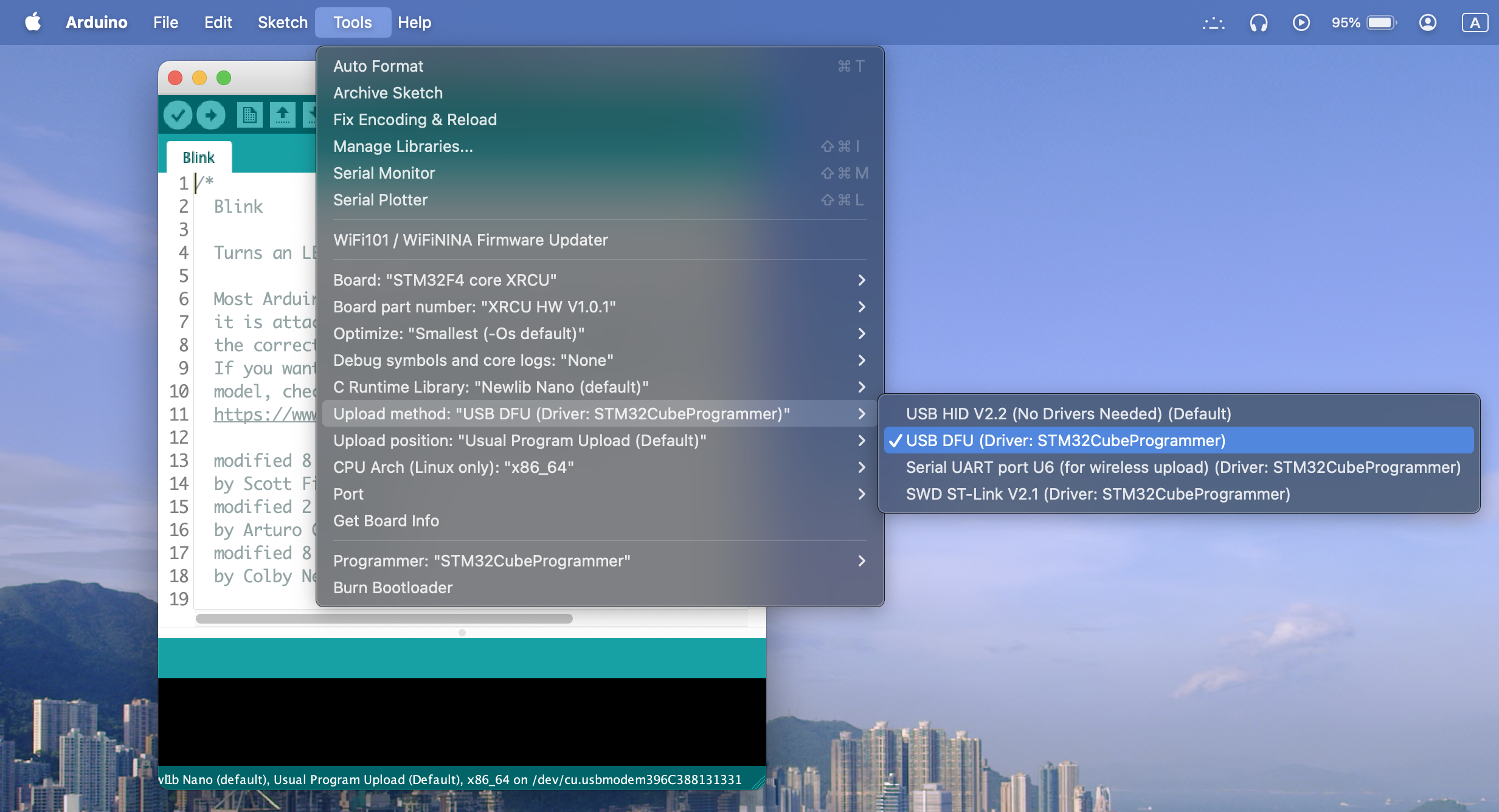
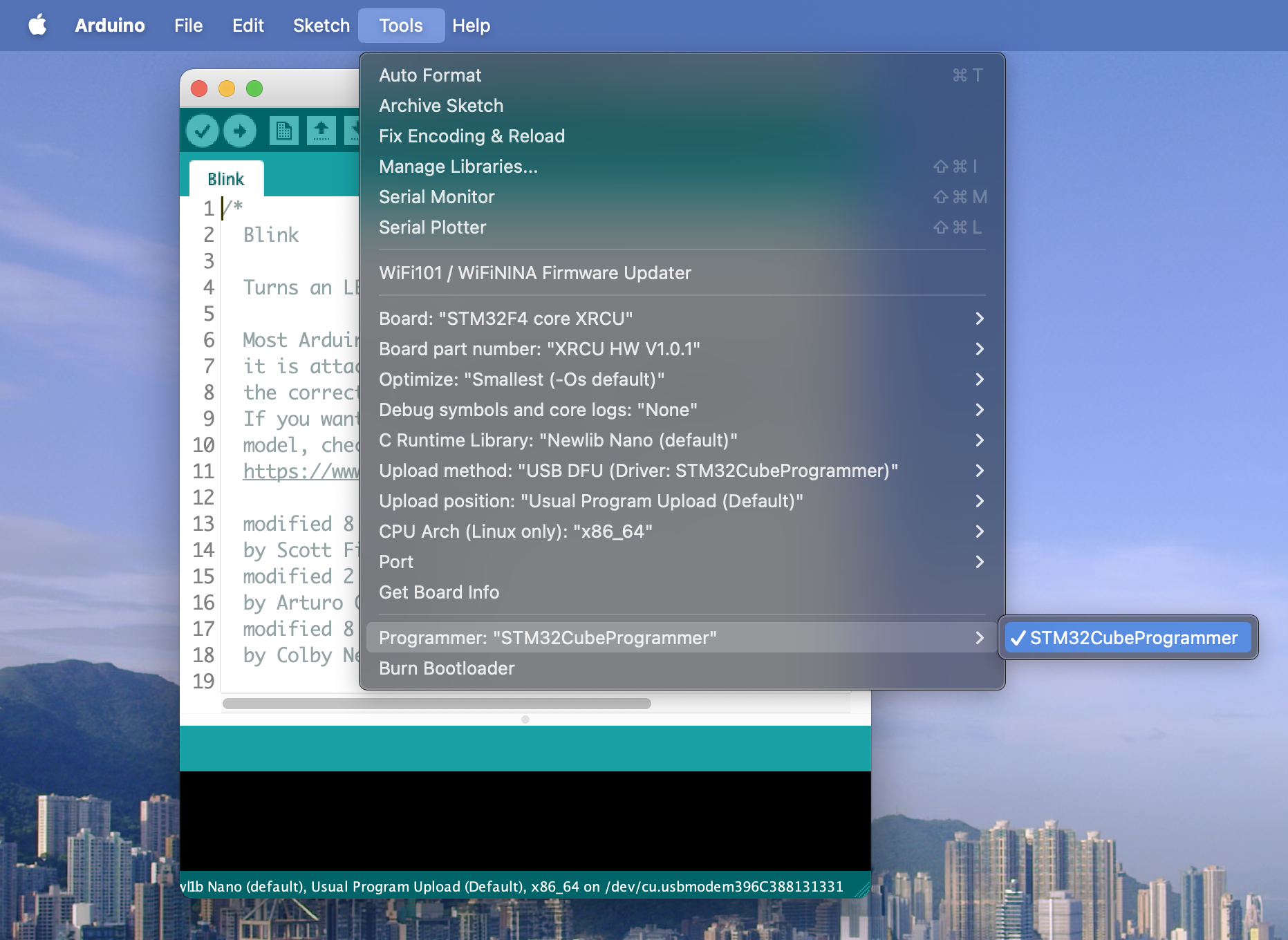
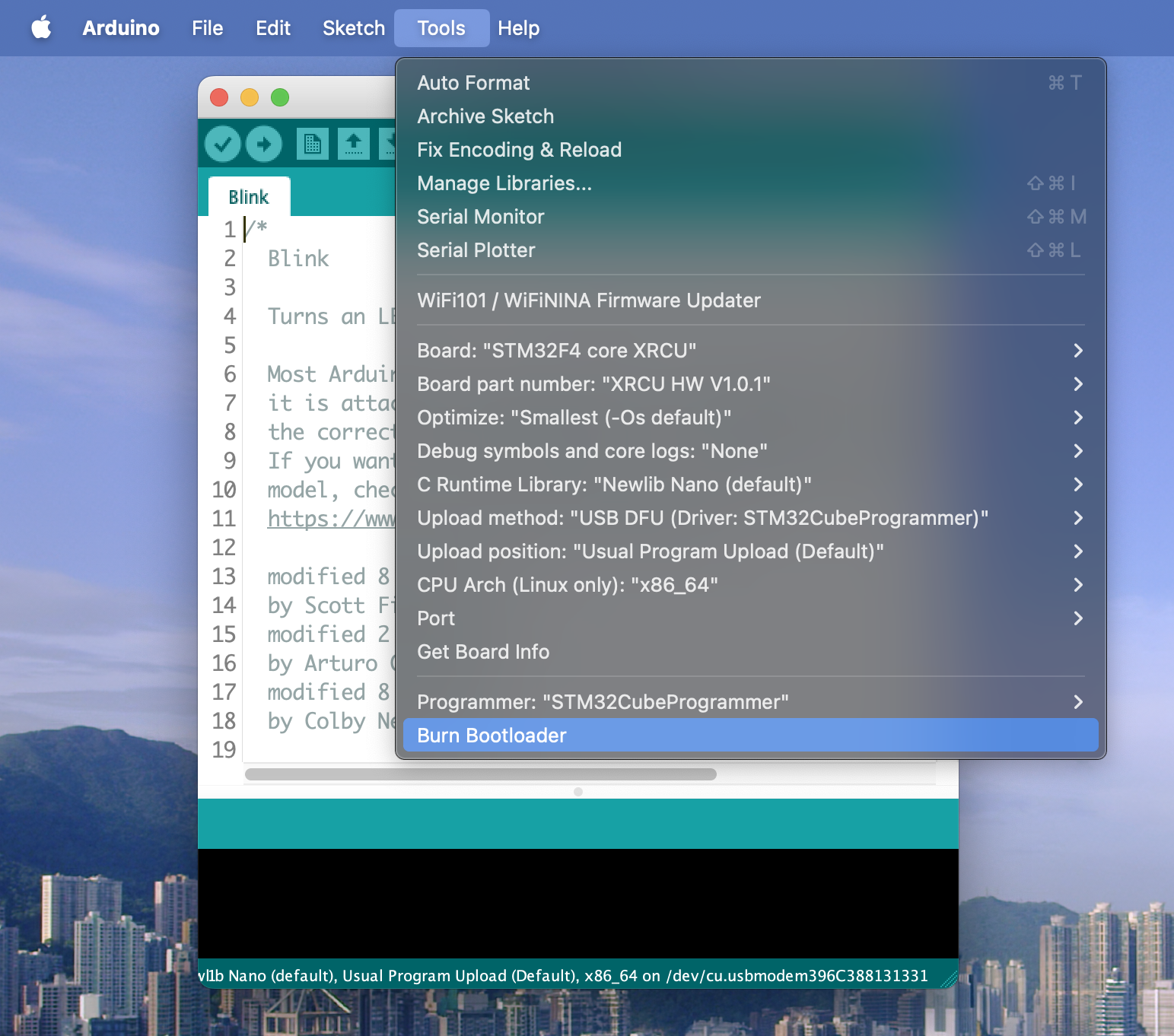
You would need to install STM32CubeProgrammer on your computer in order to perform the following steps.
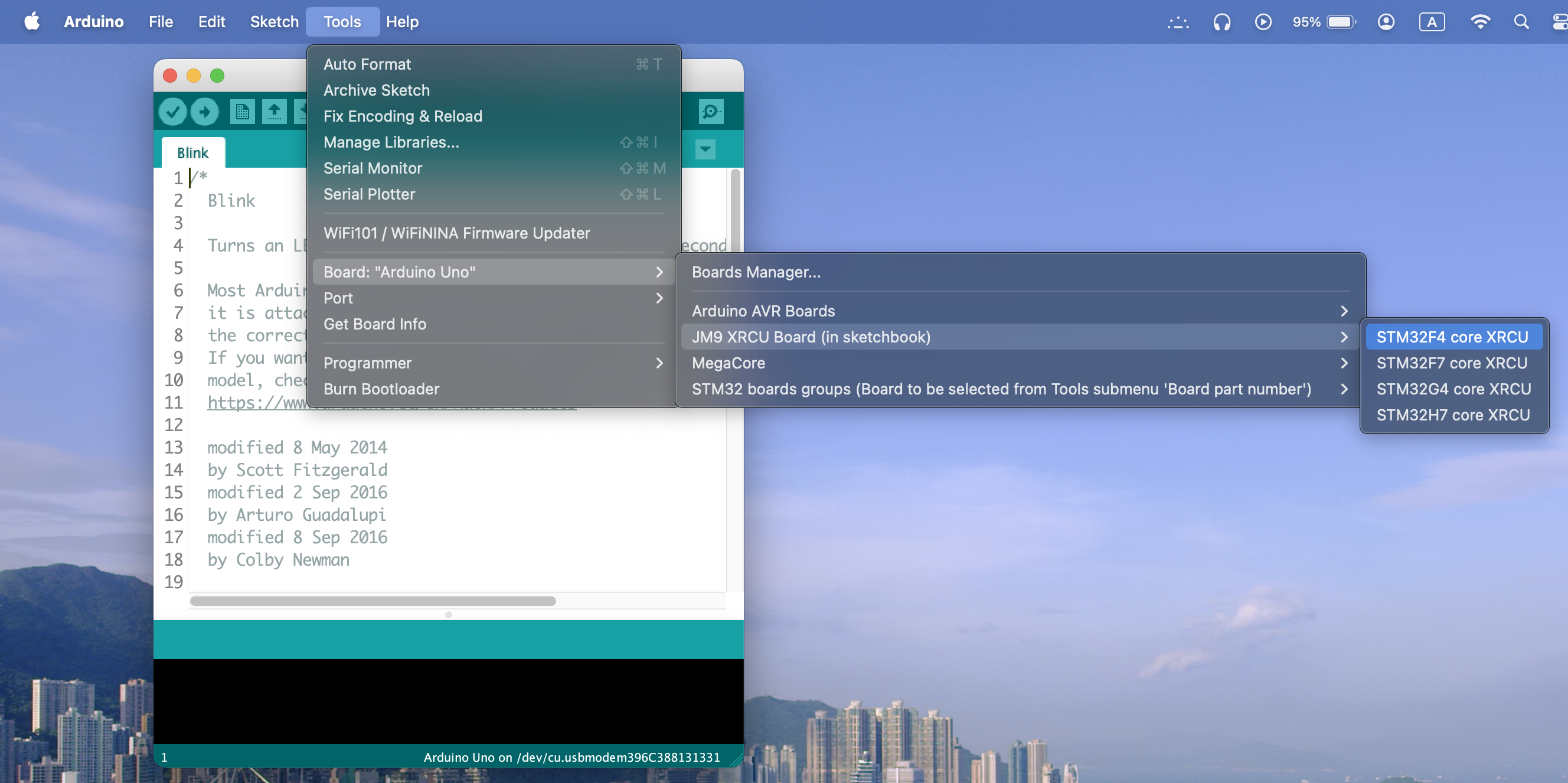
 1.18.0